Paste an image, and NotePix automatically uploads it to GitHub and replaces the local file with a fast hosted link — so your notes stay small, fast, and portable. Public or private repos, encrypted token storage, desktop & mobile.




From Obsidian (recommended):
- Open Settings → Community plugins → Browse.
- Search for “NotePix”.
- Click Install, then Enable.
Or install manually: download main.js and manifest.json from the latest release into <vault>/.obsidian/plugins/notepix/.
New here? Jump to the Setup Guide — it takes about 3 minutes.
I built NotePix after getting burned by third-party image hosts. I was using a public uploader (Imgur-style), and two things bothered me: my uploaded images were public — anyone who found my account could see all of them — and I had no guarantee the service would even stick around (plenty have shut down). I didn't want my notes' images living somewhere I didn't control.
NotePix fixes that. It uploads your pasted images to your own GitHub repository — which can be private — and replaces the local file with a hosted link. Your images live in storage you own and control, public only if you choose, and your vault stays lightweight, fast to sync, and portable.
The essentials:
- 📋 Paste-and-go — paste or drag an image into a note; NotePix uploads it and swaps in the hosted link automatically.
- 🔒 Public or private repos — private images render on the fly (Reading View and Live Preview) via authenticated fetch. Auto mode detects your repo's privacy and picks the right link format.
- 🔑 Encrypted token storage — your GitHub token is encrypted with AES-GCM (never stored in plain text unless you explicitly choose to); unlocked once per session with a master password.
- 📱 Desktop & mobile — works on Obsidian Desktop and Mobile (Android/iOS), including the mobile attachment button.
- 🗑️ Delete safely — right-click any NotePix image to delete it from GitHub and the note, with a guard that warns if it's used in other notes.
More features (click to expand)
- Upload existing images — run "Upload all local images in current note" to upload every already-embedded local image in one pass (uploads first, then rewrites the note once — no clobbered links).
- Multi-select delete — tick several images from a checklist and delete them together.
- Find orphaned images — review repo images no note or canvas references anymore, and delete only the ones you pick (report-only; never auto-deletes).
- Right-click Copy — copy the actual image (private or public), or copy the URL (public/CDN only).
- jsDelivr CDN (optional) — for public repos, serve images via the fast jsDelivr CDN; commands convert a note's links between raw and CDN. Auto-disabled for private repos.
- Note-path storage (optional) — mirror each note's vault path in the repo instead of one global folder.
- Heading-based filenames (optional) — name uploads after the note/heading (e.g.
MyNote-Setup-1.png) instead of a timestamp. - Repo Mode Intelligence — mismatch prompt (Use Auto / Switch to Private / Keep Public) when a private repo has public raw links; self-describing private links that survive repo-setting changes; fallback rendering for old raw links from your other repos.
- Clean up — optionally delete the local file after a successful upload (only after the link is safely replaced).
- Smart hover detection — password prompts appear only in main document views, not during hover/page previews.
Step 1 — Create a GitHub repository
Create a new GitHub repository to store your images. Name it
anything (e.g. obsidian-assets). It can be public or private — NotePix
supports both.
Step 2 — Generate a Personal Access Token (PAT)
NotePix needs a token to upload files.
Recommended (fine-grained, safest):
- GitHub → Settings → Developer settings → Personal access tokens → Fine-grained tokens.
- Generate new token. Set an expiration.
- Repository access → Only select repositories → choose your image repo.
- Permissions → Repository permissions → Contents → Read and write. (Metadata: Read is added automatically — that's all NotePix needs.)
- Generate and copy the token immediately (you won't see it again).
This covers everything: uploading, rendering (public & private), deleting, and finding orphaned images.
Note: one advanced feature — automatically resolving old, pre-v2 image links (from very early NotePix versions, e.g. after you renamed or switched image repos) — needs to look across your repositories, which a single-repo token can't do. If you have such legacy links, use a classic token (below). New setups never need it.
Or use a classic token
Developer settings → Tokens (classic) → Generate new token (classic) → check the
repo scope → Generate. Note: a classic repo token grants access to all your
repos, so the fine-grained option above is safer for most people.
Step 3 — Configure NotePix
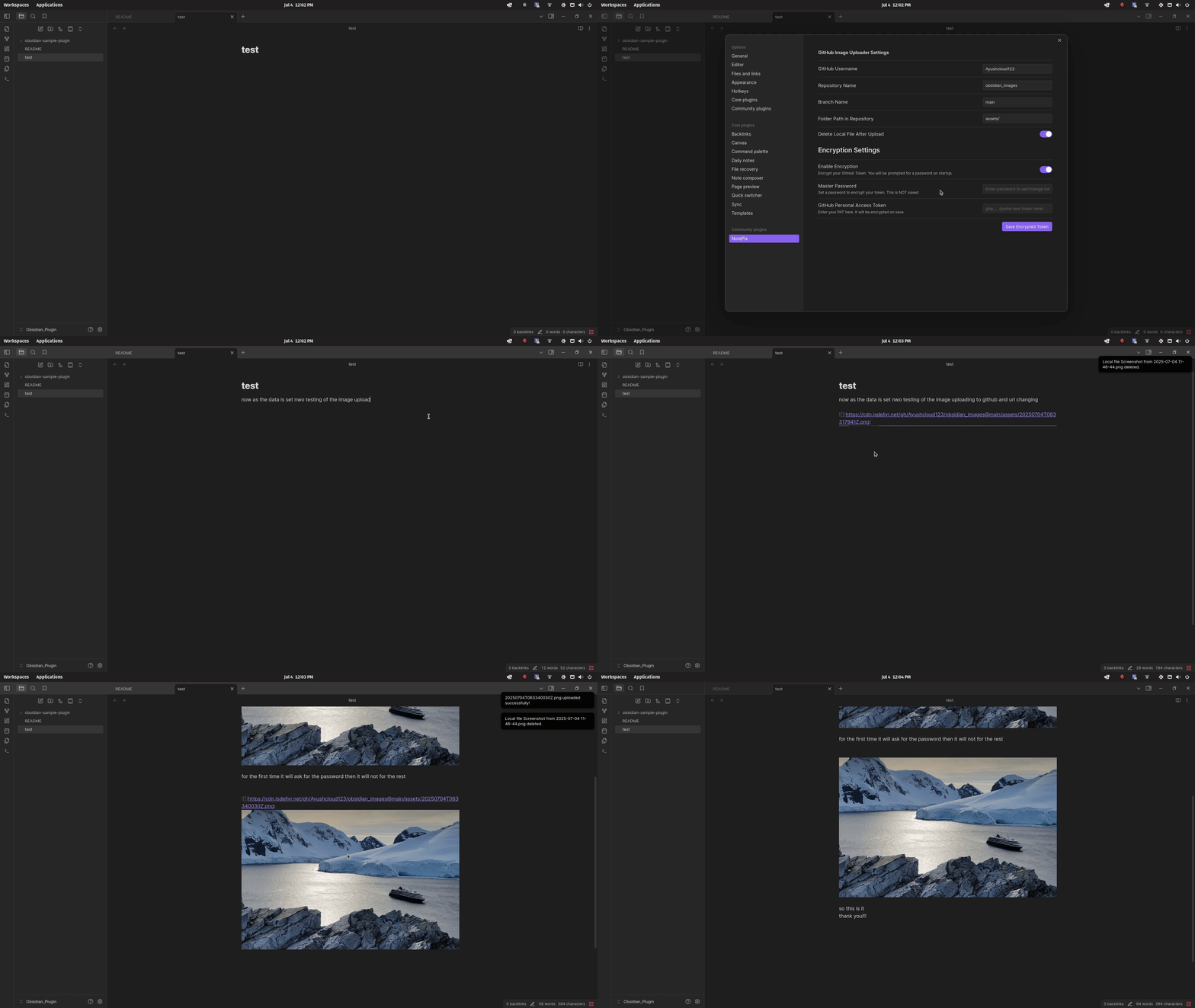
Open Settings → NotePix and fill in:
| Setting | Description | Example |
|---|---|---|
| GitHub Username | Your GitHub username (case-sensitive). | AyushParkara |
| Repository Name | The repo you created in Step 1. | obsidian-assets |
| Repository Visibility | Auto detects privacy and picks the right link format. Public/Private force behavior. | Auto |
| Branch Name | The branch to upload to. | main |
| Folder Path in Repository | Directory inside the repo for images (a / is added automatically). |
assets/ |
| Delete Local File | Delete the vault copy after a successful upload. | false |
| Use jsDelivr CDN | (Optional) Serve public-repo images via the CDN. | false |
| Image storage layout | Global folder or Mirror note path. |
Global |
| Name images after note/heading | (Optional) MyNote-1.png instead of a timestamp. |
false |
Encryption (recommended):
- Toggle Enable Encryption on.
- Enter a strong Master Password (never saved anywhere).
- Paste your PAT, then click Save Encrypted Token.
You're set — the next image you paste will upload automatically. ✅
Open the Command Palette (Ctrl/Cmd + P) and search “NotePix”:
| Command | What it does |
|---|---|
| Upload all local images in current note | Uploads every local image embedded in the active note and replaces the links. |
| Delete images in current note (multi-select) | Checklist of the note's images; delete selected ones from GitHub + note. |
| Find orphaned images on GitHub | Lists repo images no note/canvas references; pick which to delete. |
| Convert image links in note to jsDelivr CDN | Rewrites the note's public image links to CDN format. |
| Convert image links in note to GitHub raw | Rewrites the note's public image links back to raw GitHub format. |
You can also right-click an image (editor or rendered) for Copy image, Copy URL (public only), and Delete image (GitHub + note).
Repository visibility modes
Auto (Recommended) — on upload, NotePix checks repo privacy (cached 10 min). Public
→ inserts https://raw.githubusercontent.com/.... Private → inserts a self-describing
internal link obsidian://notepix/v2/<owner>/<repo>/<branch>/<path>.
Public — always inserts raw GitHub URLs. Can still render matching existing raw links from your configured GitHub user via authenticated fetch.
Private — always inserts private internal links, fetched and rendered in Reading/Live Preview using your token.
Existing links & mismatch handling
If the repo appears private while notes contain matching raw links, NotePix shows a 3-button modal: Use Auto Mode, Switch to Private, or Keep Public. Prompts are suppressed per repo with a cooldown to avoid repeated interruptions.
Editor vs Reading View
Private images render in both Reading View and Live Preview through authenticated fetch (in-memory; no temp files). If encryption is enabled, you're prompted for the master password once per session when a token unlock is first needed.
Your GitHub token is protected:
- AES-GCM (256-bit) encryption, key derived with PBKDF2 (100,000 iterations).
- Master password is never stored — it only exists in memory while you type it.
- The decrypted token lives in memory for the session and is cleared on unload.
See SECURITY.md for the full model and how to report a vulnerability. For the smallest risk, prefer a fine-grained token scoped to just your image repo.
Created by Ayush Parkara. If NotePix saves you time, consider supporting development:

You can also help by ⭐ starring the repo, reporting bugs, or sharing NotePix with other Obsidian users.
Released under the MIT License.