


A TUI (Text-based User Interface) for monitoring network usage in real-time, with support for data limits and desktop notifications.
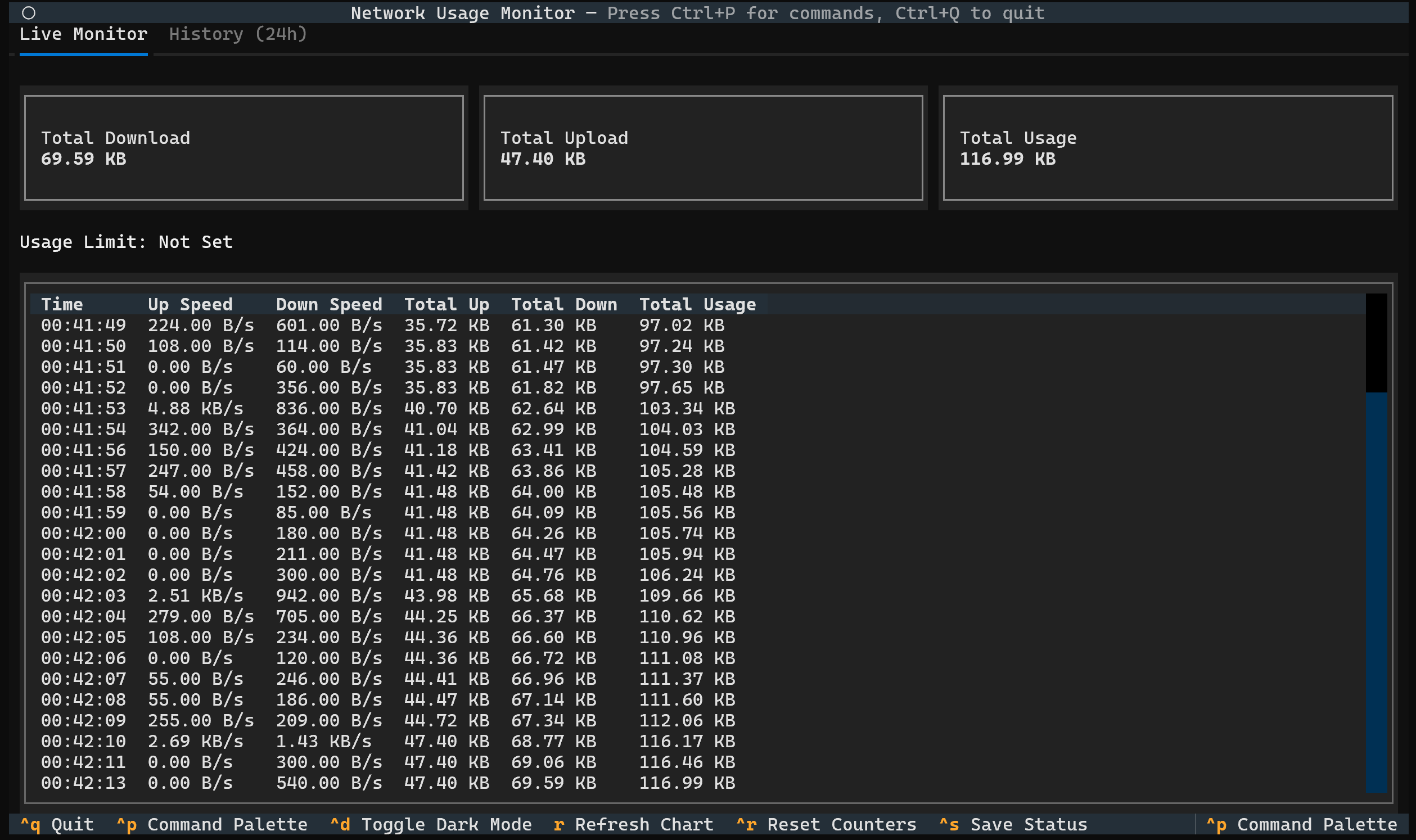
- Real-time Dashboard: A clean, terminal-based dashboard showing total download, upload, total usage, and live combined current speed.
- Smart Quota Dashboard & Burn-Rate ETA: Set data caps (e.g.,
-l 10GB) with a real-time progress bar, remaining balance, and live countdown (ETA) calculated from active burn rate. - Per-Interface Monitoring: Inspect bandwidth, upload/download speeds, and live 2D activity graphs segmented per active network adapter (e.g., Wi-Fi, Ethernet) with automatic loopback filtering.
- Universal Desktop Notifications: Native alerts across Windows (WinRT Toast with custom icon), macOS (AppleScript Notification Center), and Linux (D-Bus / notify-send) when reaching 80% and 100% data thresholds.
- Historical Analytics: View your usage trends for the last 24 hours with hourly breakdown, peak hour identification, and traffic statistics including download/upload percentages and average usage.
- Crash-Proof Database: Powered by SQLite with Write-Ahead Logging (WAL) to ensure your data is safe even if your PC loses power.
- Automated Data Retention & Downsampling: Automatically compresses older records into hourly averages (min, max, average speeds) and purges raw records older than the retention threshold (default: 7 days) to prevent database bloat.
- Smart Units: Toggle between Bits (Mbps) and Bytes (MB/s) instantly with Ctrl+B to match ISP speeds or file sizes.
- Optimized TUI Experience: Responsive, non-scrolling footer keybindings built for standard 80-column viewports and debounced top-bar status feedback.
- Command Palette & Dark Mode: A modern TUI experience with a built-in command palette (
Ctrl+P) and dark mode support (Ctrl+D). - Auto-Migration: Automatically detects and imports data from older versions (
quota.json) so you never lose history. - Cross-Platform: Runs seamlessly on Windows, macOS, and Linux.
No Python required.
- Download
netwatch-windows.exefrom the Releases Page. - Basic Usage: Double-click the file to start monitoring immediately.
- Advanced Usage: To set limits (e.g.,
-l 10GB), open your terminal (PowerShell/CMD) in the download folder and run:.\netwatch-windows.exe -l 10GB
Designed for Python 3.8+ and distributed on PyPI for simple installation with pip.
pip install netwatchpyOnce installed, the netwatch command will be available in your terminal.
To start the monitor (monitors all interfaces):
netwatchTo see all available options and help:
netwatch --helpYou can control the monitor with these arguments:
-
-h,--help- Shows the help message and all options.
-
-i INTERFACE,--interface INTERFACE- Monitors a single, specific network interface (e.g., -i "Wi-Fi"). Defaults to "all".
-
-l LIMIT,--limit LIMIT- Sets a data cap and shows a progress bar (e.g., -l "10GB" or -l "500MB").
-
--log LOG- Saves all network activity to a specified CSV file (e.g., --log "usage.csv").
-
--retention-days RETENTION_DAYS- Sets the retention policy in days for granular 1-second records (default:
7). Records older than this are rolled up into hourly summaries before purging.
- Sets the retention policy in days for granular 1-second records (default:
Set a 10GB data limit:
netwatch -l "10GB"Set custom data retention (e.g., 14 days):
netwatch --retention-days 14Monitor a specific interface ("Wi-Fi") and log to a file:
netwatch -i "Wi-Fi" --log "my_usage.csv"Ctrl+P: Open the Command PaletteCtrl+D: Toggle Dark / Light ThemeCtrl+B: Toggle Unit format between Bits (Mbps) and Bytes (MB/s)R: Refresh the 24-hour history chart and analyticsCtrl+R: Reset all counters and database records to zeroCtrl+S: Show auto-save status (data is continuously auto-saved to SQLite)Ctrl+Q: Quit the application safely
This is the default view. It shows:
- Summary Cards: Four live telemetry cards displaying Total Downloaded, Total Uploaded, Total Bandwidth (combining session usage and stored history), and Current Speed (live combined upload and download throughput).
- Smart Quota Dashboard & Burn-Rate ETA: When a data cap is configured (
-l), a compact 3-row dashboard appears above the activity log:- Usage Limit Header: Displays the target limit (e.g.,
Usage Limit: 10.00 GB). - Dynamic Progress Bar: Real-time visual progress bar tracking data consumption. Automatically shifts color to yellow at 80% and red at 100%.
- Live Telemetry Badge: A compact status badge reporting exact remaining data (e.g.,
1.2 GB remaining), percentage consumed ((88.0%)), active burn-rate speed (• 4.5 MB/s), and dynamic countdown ETA forecaster (• ETA: 4m 27s, or• ETA: Idlewhen no active traffic is flowing).
- Usage Limit Header: Displays the target limit (e.g.,
- Live Activity Table: A scrolling table recording second-by-second download and upload speeds.
A split-pane view displaying segmented metrics for each active network interface:
- Sidebar (Left): Selectable list of active interfaces (virtual and loopback connections are automatically filtered out).
- Metrics Cards (Right): Current download/upload speeds, session totals, and hardware adapter totals for the selected interface.
- Real-time Activity Graph: An uncluttered 2D waveform chart plotting live traffic trends (
█= Download,░= Upload).
This tab visualizes your traffic over the last 24 hours.
- Traffic Summary: Displays total upload/download with percentages, peak hour, and average usage per hour.
- Hourly Breakdown: Each row represents a 1-hour block of time (e.g., 14:00 covers 2:00 PM to 2:59 PM).
- The Bar:
- Solid Block (█): Represents Download traffic.
- Shaded Block (░): Represents Upload traffic.
- Peak Hour: Marked with a
(PEAK)tag indicating the hour of highest traffic volume. - Total: The text on the right shows the exact data transferred during that hour.
Tip: Press
rat any time to refresh the history chart with the latest database records.
Netwatch provides native, cross-platform notifications when monitoring data limits:
- 80% Quota Warning: Triggered once total traffic reaches 80% of your configured limit.
- 100% Quota Exceeded: Triggered immediately when your limit is reached.
- Platform Integration:
- Windows: Native WinRT Toast notifications with the Netwatch emblem icon embedded in the attribution banner via Windows Shell AppUserModelId registration.
- macOS: Native AppleScript (
osascript) Notification Center alerts. - Linux: Desktop notifications via D-Bus with automatic fallback to
notify-send.
Found a bug or have a great idea? Please open an issue on the GitHub repository.
This project is licensed under the MIT License.