


A feature-rich, high-performance Touch Bar host and Control Center for Apple MacBook Pro running Windows 10/11 through Boot Camp.
Renders custom UI directly to the Touch Bar hardware framebuffer at smooth 60 FPS with zero lag, bringing native media control, intelligent audio device tracking, an adaptive running apps switcher dock with touch gestures, interactive pets, multi-source CPU thermals, and MacBook hardware integrations.
Supports all Touch Bar MacBook Pro models (13", 15", 16" from 2016 through 2020 with Apple T1 and T2 Security Chips).
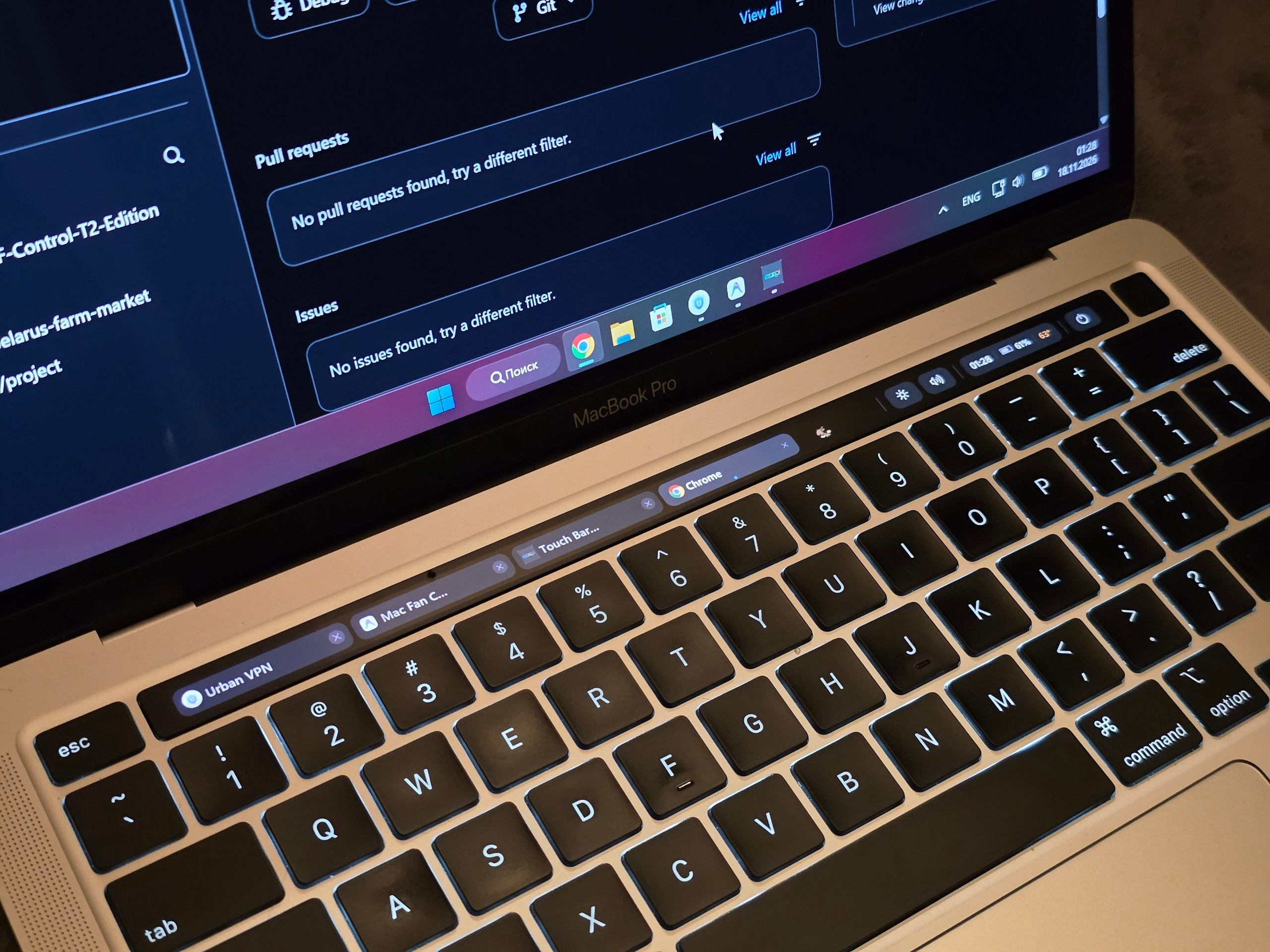
General view of the Touch Bar in action: ESC button, adaptive dock, volume/brightness controls, and companion pet.
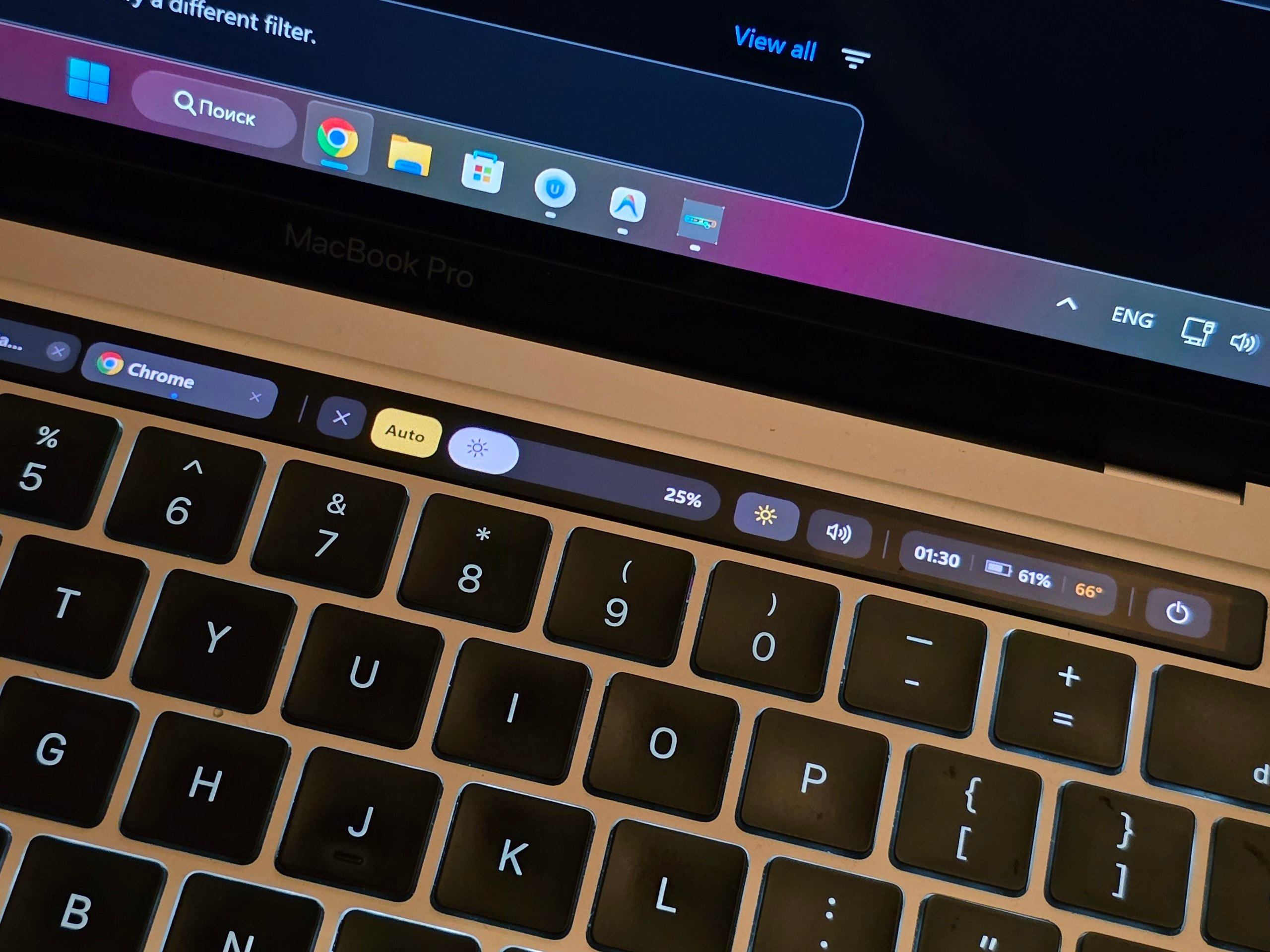
Touch Bar brightness slider drawer with real-time level adjustment and auto-brightness toggle.
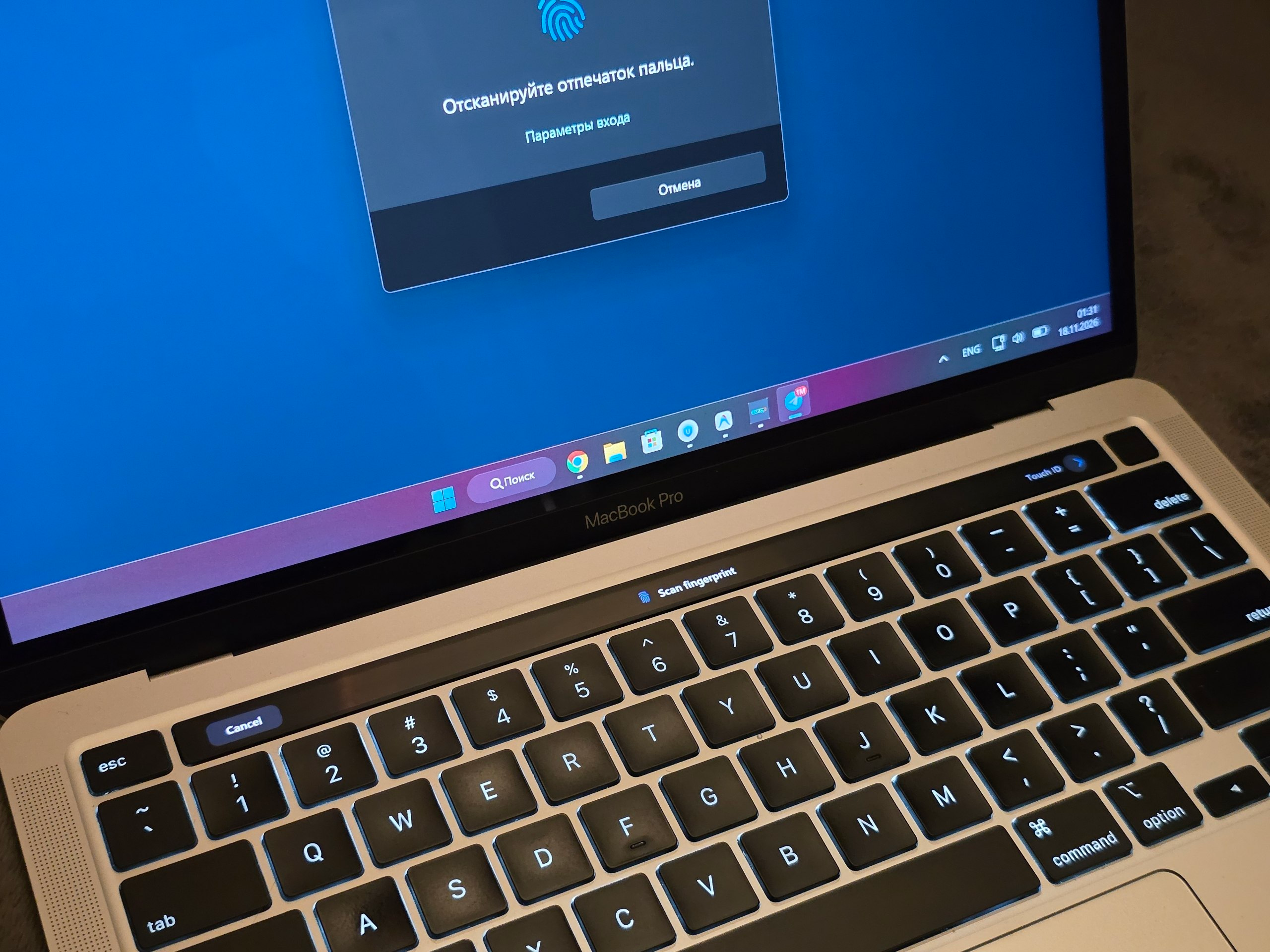
macOS-style Touch ID / Windows Hello biometric verification prompt on the Touch Bar.
Important
Touch ID Sensor in Windows: To enable the physical Touch ID fingerprint sensor on Apple T2 MacBook Pro under Windows, install the open-source driver from Osaul4ik/apple-t2-touchid-windows.
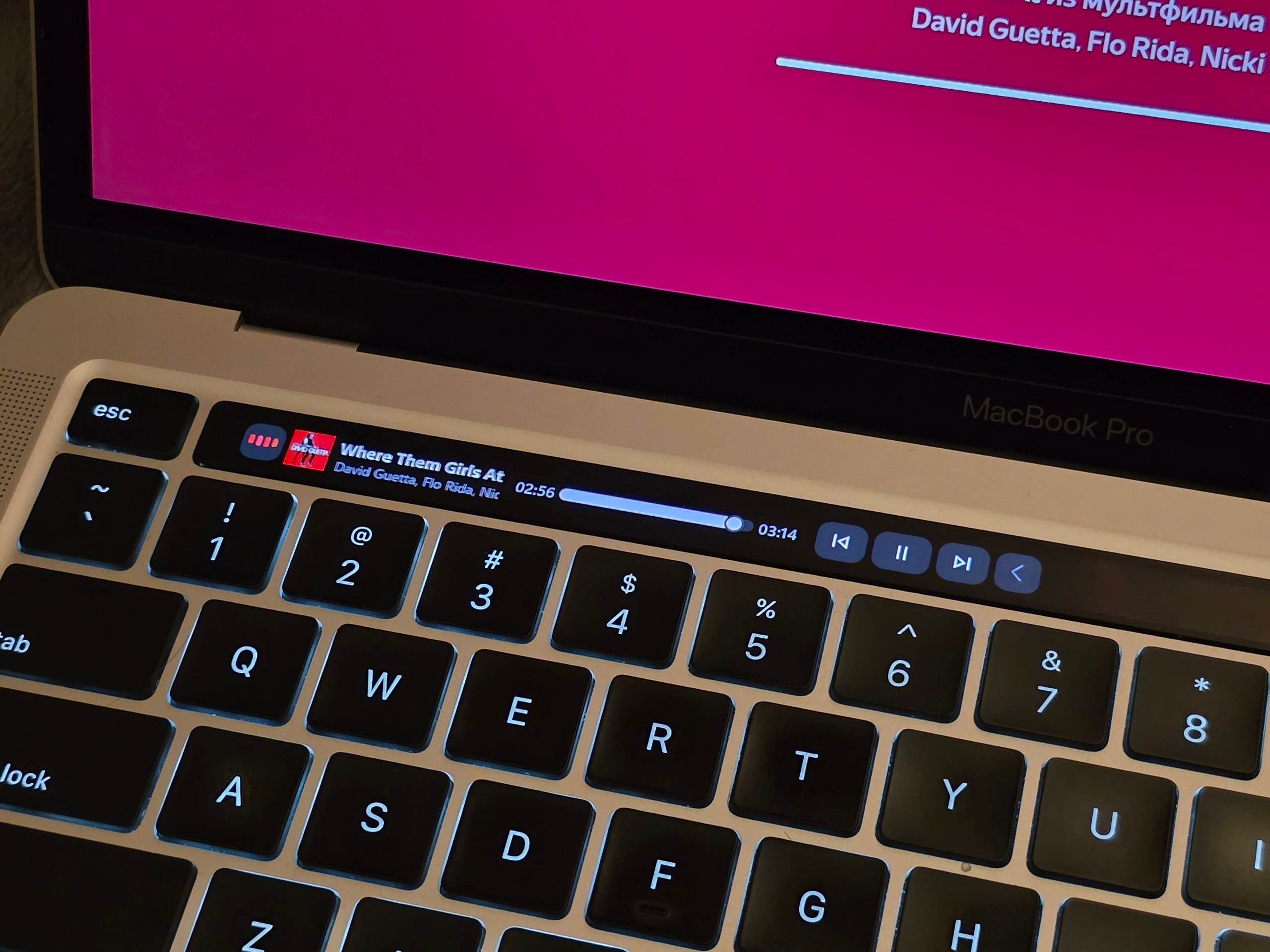
Live SMTC media strip displaying current track name, artist, and playback controls with companion pet dancing to music.
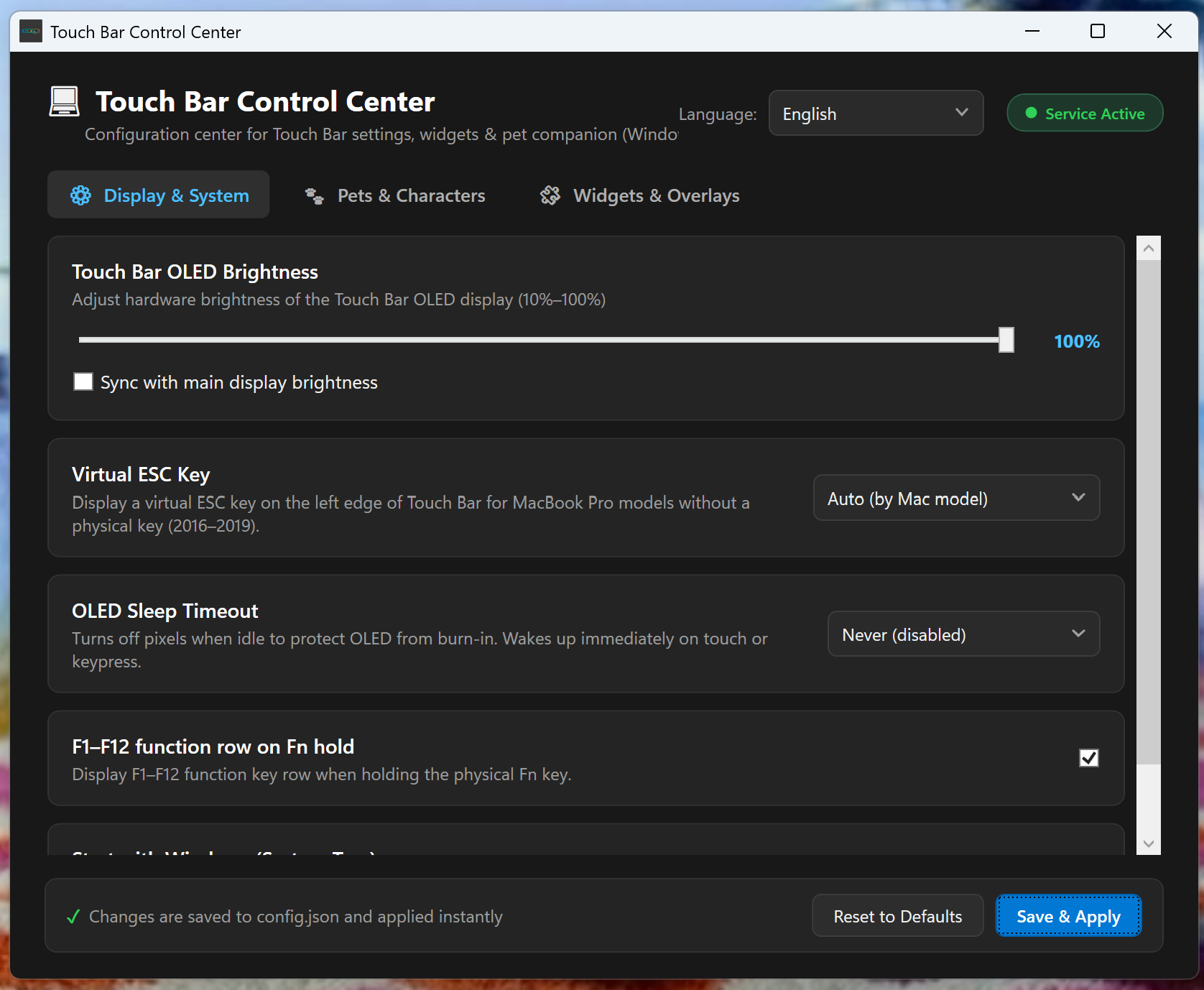
TouchBarSettings.exe GUI Control Center for customizing widgets, pets, hotkeys, and display options.
- Driven by the low-level
DFRDisplayKm.syskernel driver andAvalonia.DfrFrameBuffer.dll. - Writes directly to the USB framebuffer endpoint (
\\.\DFRDisplayKm) at 60 FPS with minimal CPU overhead (~0.1% – 0.3%). - Dedicated digitizer touch processing with sub-pixel touch tracking and zero-latency feedback.
-
Dynamic Audio Device Tracking (
IMMNotificationClient): Automatically monitors default audio render endpoint changes. When external speakers (e.g. JBL Link Portable, Bluetooth speaker), USB DAC, or headphones are connected or disconnected, the volume slider instantly switches to control the active device instead of remaining stuck on built-in Apple Audio Device speakers. -
Bi-directional Real-Time Volume Sync (
IAudioEndpointVolumeCallback): Adjustments made via hardware buttons, keyboard shortcuts, or Windows taskbar flyouts instantly reflect on the Touch Bar slider. -
Control Center Capsule Slider with Dual-Gesture Speaker Icon:
-
Tap Speaker Icon (
$X \le 38\text{ px}$ ): Toggles Mute / Unmute instantly without altering the current volume level. Icon turns red (\uE74F), label reads "Mute", and track dims. - Swipe to Adjust: Dragging from the left edge smoothly slides volume from 0% to 100%. Sliding up automatically unmutes the audio.
-
Tap Speaker Icon (
-
Touch Bar Brightness Drawer:
- Smooth capsule slider for display brightness.
- Auto-Brightness toggle button directly inside the drawer.
-
Power Management Drawer:
- Quick Lock (
LockWorkStation). - Restart (
shutdown /r /t 0). - Shut Down with two-step confirmation ("Shut Down"
$\rightarrow$ "Confirm?") to prevent accidental taps.
- Quick Lock (
- Live Running Applications: Discovers top-level non-minimized desktop windows, extracts crisp high-DPI icons, and displays active window highlight indicators.
-
Window Switching & Minimizing:
- Tap an inactive app to bring it to the foreground (bypasses Windows foreground lock restrictions via simulated key events).
- Tap the active app tab to minimize its window to the taskbar.
- Adaptive Shrinking (Dynamic Tab Width): Tabs dynamically scale down from 160 px down to 65 px as more apps open, preserving clean readability and icon alignment without immediately requiring scroll.
-
Horizontal Touch Scroll & Auto-Focus:
- Smooth horizontal pan gesture (
$\ge 8\text{ px}$ ) with inertia to browse overflowed tabs. - Auto-scrolls the dock strip to always keep the foreground window visible.
- Smooth horizontal pan gesture (
- 10 Animated Character Skins:
- Eevee, Pikachu, Charmander, Bulbasaur, Squirtle, Gengar, Snorlax, Lucario, Marisa, Reimu.
- Rich Animations:
- Walking with direction flips, idle breathing, and sleeping when the system is inactive.
- Music Dancing: Characters dance whenever media playback is active!
- Touch Gestures: Drag and drop pets along the Touch Bar; tap to trigger affection emotes (hearts, notes, sparks).
- Static Pinning Mode (📌): Lock the character in place so it stays stationary and only moves when dragged with a finger.
- Deep integration with Windows System Media Transport Controls (
Windows.Media.Control). - Supports Spotify, Apple Music, YouTube Music, Chrome, Edge, and media players.
- Displays live Track Title, Artist, and playback controls (Previous, Play/Pause, Next).
- Smooth crossfade transition between the Dock and Media strip.
An automatic multi-source thermal engine that gracefully falls back across sensor providers without UI freezes or WMI locks on Apple T2 chips:
- WMF Control T2 Edition / Macs Fan Control (Shared Memory):
When WMF Control T2 Edition is running in the background, Touch Bar reads CPU temperature directly from fast inter-process Shared Memory (
Local\WMF_CpuTemp/Global\WMF_CpuTemp). This provides instantaneous updates with zero CPU overhead without duplicating queries to the Apple T2 SMC bus. If WMF Control is not running or not installed, the engine seamlessly switches to built-in fallback sources. - LibreHardwareMonitorLib (Direct MSRs): Reads Intel DTS MSRs directly via Ring0 driver with TjMax Distance filtering.
- Core Temp (Shared Memory):
Reads
CoreTempMappingObject. - AIDA64 (Shared Memory XML):
Reads
AIDA64_SensorValues. - Windows ACPI WMI:
Safe query to
MSAcpi_ThermalZoneTemperaturewith an asynchronous 200 ms timeout protection.
- Anti-Flicker Buffer: Holds the last valid temperature for up to 3.5 seconds across transient bus misses.
- Edge-Aligned Virtual ESC Key: Essential Escape key repositioned to the far-left edge of the Touch Bar display for effortless, natural touch access on 2016–2019 MacBook Pro models lacking a physical Escape key.
- Full-Width Global Fn Row (F1–F12):
Holding the physical
Fnkey on the MacBook keyboard flips the bar into standard F1–F12 keys, now stretched and evenly distributed across the entire display length for optimal finger reach. - System Overlays:
- Windows Hello / Touch ID biometric prompt banner.
- Administrator UAC elevation dialog confirm buttons.
- MagSafe / USB-C charging connection banner.
- All-in-One Engine:
A single unified executable that orchestrates the hardware display host (
DFRContentHost), settings UI, and system tray integration. - Windows System Tray Integration:
- Discreet tray icon (
app.ico) in the taskbar notification area. - Left-click / double-click opens the Control Center / Settings window instantly.
- Right-click context menu: 🖥 Control Center, 🚀 Toggle Autostart, 🔄 Restart Touch Bar, and ❌ Exit.
- Closing (
[X]) or minimizing the Settings window automatically docks to the tray, maintaining 60 FPS Touch Bar rendering in the background.
- Discreet tray icon (
- In-App Autostart Management: Toggle Windows logon autostart directly with one switch inside the Settings window (or from the tray menu) without needing separate scripts.
- Fluent Windows 11 Settings Center:
- Modern dark-themed WPF configuration utility with instantaneous asynchronous loading.
- Bilingual: full English and Russian localization.
- Widget reordering, pet selector, and visibility toggles.
- Live synchronization with
config.jsonwithout requiring application restarts.
- Automated Diagnostics & Setup:
Replaces scattered installation scripts with one smart diagnostic utility. Running
TouchBar.batautomatically inspects Windows Test Signing status, driver presence in the DriverStore, certificate trust, and Apple T2 iBridge USB controller state. - Self-Healing Actions: Automatically identifies missing components or disabled devices and fixes them in one click.
- Quick CLI Commands:
TouchBar.bat(Interactive status check & automatic setup)TouchBar.bat install(Installs certificates and registers driver)TouchBar.bat status(Displays comprehensive diagnostic status)TouchBar.bat fix(Re-enumerates USB bus & restarts Touch Bar)TouchBar.bat autostart(Toggles Windows Task Scheduler autostart)TouchBar.bat uninstall(Clean uninstallation of driver, certs, and tasks)TouchBar.bat start(LaunchesTouchBar.exe)
Important
MacBook Pro 2018–2020 (Apple T2 Chip) Notice: Apple T2 machines require two prerequisite steps before third-party kernel drivers can run in Windows Boot Camp: disabling Apple Secure Boot in macOS Recovery, and enabling Windows Test Signing. Follow the steps below carefully.
-
Turn off Apple Secure Boot:
- Restart your Mac and hold
Cmd + Runtil the Apple logo appears to enter macOS Recovery. - In the top menu bar, open Utilities
$\rightarrow$ Startup Security Utility. - Enter your macOS administrator password.
- Under Secure Boot, select No Security.
- Under Allowed Boot Media, ensure Allow booting from external or removable media is selected.
- Click the Apple logo
$\rightarrow$ Restart$\rightarrow$ Boot into Windows.
- Restart your Mac and hold
-
Enable Windows Test Mode (Test Signing):
- In Windows, open Command Prompt (cmd.exe) as Administrator (Right-click
$\rightarrow$ Run as administrator). - Run the command:
bcdedit -set TESTSIGNING ON - Reboot your computer.
- (After rebooting, a small "Test Mode" watermark will appear in the bottom-right corner of the Windows desktop. If you ever want to turn off test mode, run
bcdedit -set TESTSIGNING OFFand reboot).
- In Windows, open Command Prompt (cmd.exe) as Administrator (Right-click
Tip
Driver & Certificate are bundled in the release: The DFRDisplayKm driver, its security certificate, and diagnostic tools are all bundled in the release archive in the Driver/ folder! You do not need to download them separately.
-
Download & Extract Release:
- Download the latest
TouchBar-Windows-v1.0.1-win64.zipfrom Releases. - Extract the ZIP archive into a permanent folder (e.g.
C:\Program Files\TouchBaror anywhere on your SSD).
- Download the latest
-
Run Intelligent Setup (Automated 1-Click):
- Right-click
TouchBar.batand select Run as administrator. - The script will automatically verify your system environment, import
DFRDisplayKm.cerinto Windows Trusted Root and Trusted Publishers (preventing Code 52 errors), registerDFRDisplayKm.infinto the Windows DriverStore, and switch the Apple T2 iBridge USB controller (USB\VID_05AC&PID_8302) into Touch Bar Display mode. - If any step is missing or broken, it will offer to fix it automatically!
- Right-click
-
Launch Touch Bar:
- Double-click
TouchBar.exe(or runTouchBar.bat start). - The Touch Bar will instantly light up at 60 FPS with media controls, clock, battery, dynamic app switcher dock, CPU temperature, and companion pet!
- The program icon will appear in the Windows system tray.
- Double-click
-
Enable Autostart on Logon:
- Open the Settings window (double-click the tray icon or launch
TouchBar.exe). - Switch the 🚀 Автозапуск при входе в систему (Autostart on logon) toggle to ON (or right-click the tray icon
$\rightarrow$ 🚀 Автозапуск: Вкл). - This registers the silent Windows Task Scheduler task
TouchBarAutoStartwith highest privileges, launching silently in the system tray (--tray) on user login without UAC prompts.
- Open the Settings window (double-click the tray icon or launch
-
Touch Bar stays black / nothing appears:
- Right-click
TouchBar.bat$\rightarrow$ Run as administrator (or runTouchBar.bat fix). - The script diagnoses driver health and resets the Apple T2 iBridge USB controller (
USB\VID_05AC&PID_8302) to re-bind the framebuffer interface. -
Yellow exclamation mark (Code 52) in Device Manager: Windows Test Mode is not enabled or the certificate was not imported. Make sure you ran
bcdedit -set TESTSIGNING ON, rebooted, and ranTouchBar.bat installas Administrator. - Check
crash.txtin the program folder for detailed diagnostic logs.
- Right-click
-
Settings window takes long to open:
- Resolved: Settings queries system state asynchronously and opens instantly in milliseconds. Double-click the system tray icon to view or click 📥 Скрыть в трей to minimize.
-
CPU Temperature shows as blank or dashes:
- Resolved: Temperature now updates immediately upon startup. For optimal accuracy and zero CPU overhead on T2 Macs, keep WMF-Control-T2-Edition running in the background.
To cleanly and completely remove Touch Bar, its autostart entry, and the kernel driver from Windows:
- Open the application folder.
- Right-click
TouchBar.bat$\rightarrow$ Run as administrator and choose Uninstall (or runTouchBar.bat uninstallfrom an elevated prompt).- Automatically terminates all active Touch Bar processes, deletes the Task Scheduler autostart task, uninstalls the
DFRDisplayKmdriver from the Windows Driver Store, removes installed certificates, and resets the Apple T2 iBridge controller back to default hardware function keys.
- Automatically terminates all active Touch Bar processes, deletes the Task Scheduler autostart task, uninstalls the
- Delete the application folder.
-
(Optional) To disable Windows Test Mode, run
bcdedit -set TESTSIGNING OFFin an Administrator Command Prompt and reboot.
- Windows 10/11 x64
- Visual Studio 2019 / 2022 or .NET Core 3.1 SDK
- Workloads:
.NET desktop development
# Clone repository
git clone https://github.com/Gleb200/MacBook-TouchBar-Windows.git
cd MacBook-TouchBar-Windows

# Build entire solution in Release configuration
dotnet build -c Release DFRContentHost.sln
Build outputs will be generated in:
DFRContentHost\bin\Release\netcoreapp3.0\TouchBarSettings\bin\Release\netcoreapp3.1\TouchBar\bin\Release\netcoreapp3.1\
├── Avalonia.DfrFrameBuffer/  # Low-level DFRDisplayKm driver bridge & touch digitizer
├── DFRContentHost/           # Main Avalonia UI host, Control Strip, Dock, Telemetry
│   ├── Assets/               # UI graphics, icons, and fonts
│   ├── Interop/              # CoreAudio, CpuTemperatureMonitor, NativeMethods
│   ├── Models/               # AppConfig, ConfigManager
│   ├── ViewModels/           # MainViewModel, Telemetry, Companion, SMTC
│   └── pets/                 # Sprite sheets for 10 companion characters
├── Driver/                   # DFRDisplayKm kernel driver, certificate & Manager.ps1
├── TouchBarSettings/         # Fluent Dark Windows 11 WPF settings & tray controller
├── TouchBar/                 # Elevated silent application launcher
├── TouchBar.exe              # Unified entry point (System Tray + Settings + Display Host)
├── TouchBar.bat              # Smart 1-click diagnostic installer & manager (Admin)
├── DFRContentHost.sln        # Visual Studio solution file
└── LICENSE.txt               # MIT License
Tip
Recommended Companion: For complete hardware control of your MacBook Pro (2016–2020) running Windows in Boot Camp, use this project paired with WMF-Control-T2-Edition.
While Touch Bar for Windows gives you tactile controls, media playback, and app switching, WMF Control T2 Edition manages dual fan curves, monitors Apple T2 temperature sensors, and streams real-time CPU thermal data directly to the Touch Bar widget via high-speed Shared Memory (Local\WMF_CpuTemp) with zero CPU overhead.
If you find Touch Bar for Windows helpful and want to support continued development and maintenance of independent open-source projects for MacBook Boot Camp:
- Boosty (Bank Card / Mir / PayPal / Global): boosty.to/gringleb/donate
- NOWPayments (Crypto: USDT / TON / BTC / ETH / SOL and 300+ coins): nowpayments.io/donation/glebgrin

- Bingxing Wang (imbushuo) & Naozumi520 for the pioneering DFRDisplayKm kernel driver and original DFRContentHost concept.
- Osaul4ik for the Apple T2 Touch ID driver for Windows.
- Avalonia UI for the cross-platform XAML framework.
- LibreHardwareMonitor contributors for hardware sensor abstractions.
- Gleb200 for the MacBook Pro Windows Touch Bar enhancements, Core Audio dynamic device switching, adaptive dock touch scrolling, multi-source thermal engine, companion pets, and settings center.
Distributed under the MIT License.