

A FileMaker-based visual timeline for reviewing, creating, and editing FileMaker Server schedules.


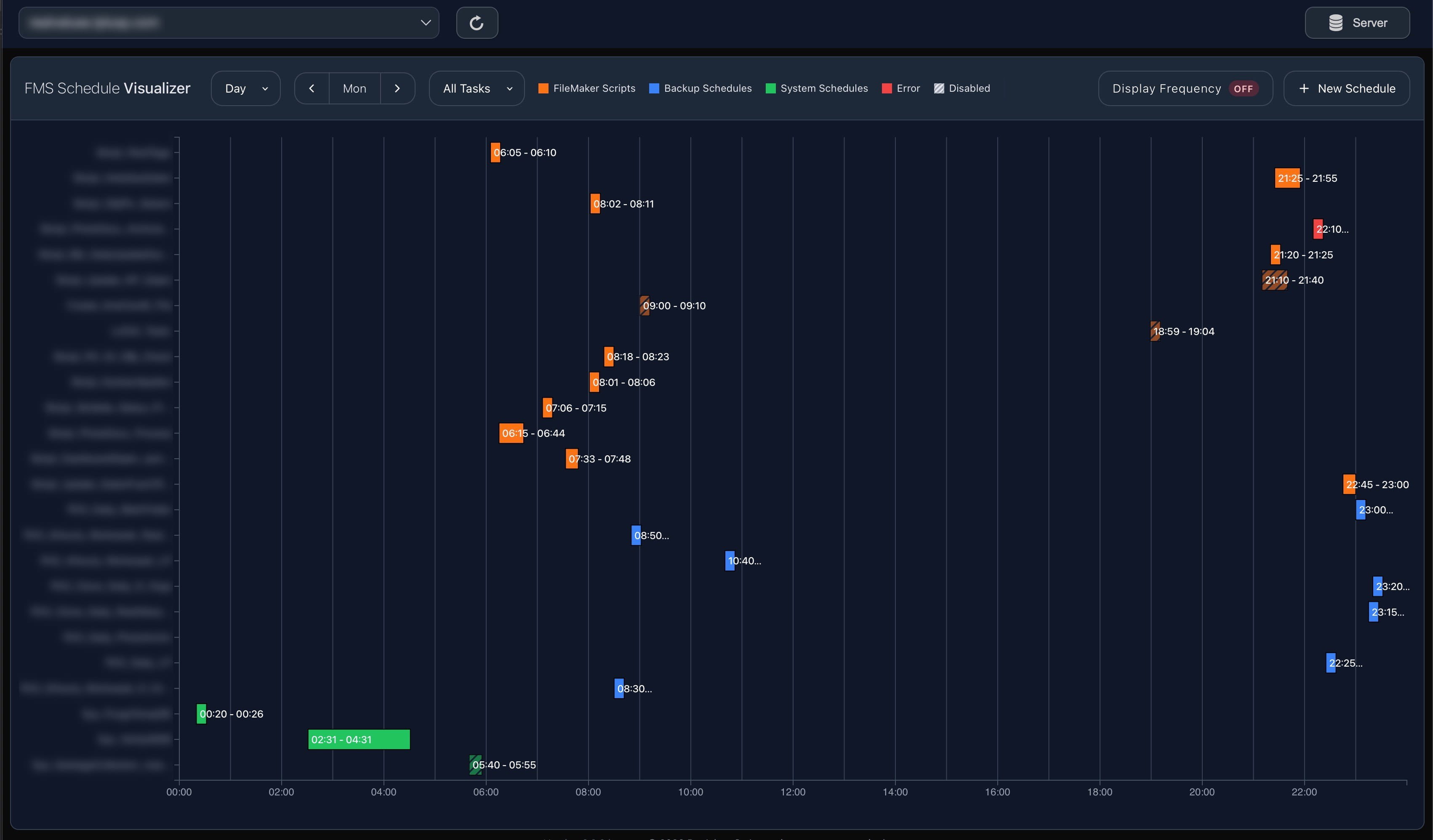
FMS Schedule Visualizer is a FileMaker-based tool for FileMaker Server administrators who want to understand scheduled backups, FileMaker scripts, and system scripts visually instead of reading schedule data line by line.
- How to start: Use
adminfor user and password. - What it is: A FileMaker Database that visualizes FileMaker Server schedules on a timeline.
- Who it is for: FileMaker Server administrators and support users reviewing backups, FileMaker scripts, and system scripts.
- Why use it: It makes timing, overlaps, disabled schedules, errors, repeat behavior, and schedule details easier to understand at a glance.
- What it can do: Review schedules visually, filter by task type, inspect details with tooltips, and create or edit schedules through a structured form.
- What it is not: It is not a standalone website and is not intended as a replacement for FileMaker Server GUI.
To open the FileMaker database with Full Access privileges, use admin for user and password.
- Overview
- What You Can Use It For
- Main Screen
- Creating and Editing Schedules
- Schedule Types
- Repeat Types
- Saving and Validation
- Data Loading
- What the App Does Not Do
- Typical Use Cases
- Practical Tips
- Credits
FMS Schedule Visualizer is a visual user interface for FileMaker Server schedules. It displays server schedules on a timeline, helps you understand when automated work happens, and lets you create or edit schedules through a structured form.
The visualization follows the idea that a picture says more than a thousand words. Instead of presenting only bare task lists, the app turns schedules into a clear and visually appealing overview that makes timing, task types, gaps, overlaps, and potential problems easier to recognize at a glance.
Schedule creation and editing are based on, and aligned with, the capabilities of the FileMaker Server GUI. The goal is not to replace FileMaker Server GUI, but to make the same scheduling work easier to understand and more comfortable to use.
The Visualizer is implemented in a FileMaker Database. It is not intended as a standalone website. In practice, this means you use it from within the FileMaker environment.
The app is intended for FileMaker Server administrators and support users who need a clear overview of backups, FileMaker scripts, and system scripts.
-
Review all schedules visually See FileMaker Server schedules as bars on a timeline instead of reading schedule data line by line.
-
Understand timing Check when schedules start, how long they are expected to run, and whether tasks overlap.
-
Focus on specific schedule types Filter the view to backups, FileMaker scripts, system scripts, or all tasks.
-
Spot problems quickly Disabled schedules, schedules with errors, missing end times, and dense schedule periods are easier to identify.
-
Review repeat behavior See weekly schedules, every-n-days schedules, and optional same-day repeat markers.
-
Edit schedules Open a schedule, change its settings, validate the data, and update the server.
-
Create new schedules Add a new FileMaker Server schedule when schedule data has been loaded.
The main screen contains:
-
Timeline toolbar Controls zoom level, day selection, filtering, frequency markers, and new schedule creation.
-
Timeline chart Displays each schedule as a horizontal bar at its planned time.
-
Legend Explains colors and status indicators.
-
Tooltips Show schedule details when you hover over a task bar.
-
Right-side editor Opens when you click a schedule or create a new one.
Use Hour for a close-up view of the selected day. This is useful for checking exact timing and schedules that run close together.
Use Day for a complete overview of one selected day. This is the normal view for checking daily server activity.
Use Week to see schedule occurrences across the current week. Weekly schedules appear on their configured days, and every-n-days schedules are expanded according to their interval.
In Hour and Day view, use the arrow buttons to move between weekdays of the current week.
-
Left arrow Shows the previous weekday.
-
Right arrow Shows the next weekday.
-
Day label Shows the selected day, such as
Mon,Tue, orWed.
The week starts on Monday.
Use the filter menu to reduce the timeline to the schedules you want to inspect.
Available filters:
-
All Tasks Shows all loaded schedules.
-
FileMaker Scripts Shows only schedules that run FileMaker scripts.
-
Backup Schedules Shows only backup schedules.
-
System Schedules Shows only schedules that run operating system scripts.
The timeline uses colors and patterns to make schedules easier to scan.
-
Orange FileMaker script schedule.
-
Blue Backup schedule.
-
Green System script schedule.
-
Red Schedule with an error.
-
Patterned bar Disabled schedule.
The Display Frequency control shows or hides markers for schedules that repeat during the same day.
Use this when a schedule starts once but repeats every few minutes or hours until an end time.
Frequency markers are useful for answering questions such as:
- How often does this task repeat after it starts?
- Does it repeat until the expected end time?
- Could repeated runs collide with another schedule?
Hover over a schedule bar to view its details.
Tooltips can show:
- Schedule name
- Task type
- FileMaker script name
- Database or file name
- Start time
- End time
- Timeout
- Backup retention and clone settings
- Backup verification setting
- Email recipients
If the end time cannot be determined, the tooltip shows Undefined.
Click a schedule bar to open the editor.
The editor appears as a right-side panel. The background is darkened while the editor is open.
To close the editor:
-
Cancel Closes the editor if there are no unsaved changes.
-
Cancel with unsaved changes Shows a warning before closing.
-
Update on Server Saves changes to FileMaker Server and closes the editor after a successful update.
Clicking the dark background does not close the editor. This prevents accidental loss of changes.
Click New Schedule to create a schedule.
The button is available only after schedule data has been loaded. This ensures that the app has enough server context, such as known databases and folder paths.
After a new schedule is saved successfully, the app asks FileMaker Server for updated schedule data so the new schedule can appear in the timeline.
To edit a schedule:
- Click the schedule in the timeline.
- Review or change settings in the editor.
- Move through the General, Schedule Type, and Repeat tabs.
- Click Update on Server.
- Wait for the success or error message.
If an error occurs, the editor remains open so you can correct the problem.
The General tab contains fields shared by all schedule types.
-
Schedule ID Shows the schedule identifier.
-
Name Schedule name. It must contain 1 to 31 characters.
-
Enabled Controls whether the schedule is active.
-
Send Email Comma-separated email recipients. This is available for backup schedules and FileMaker script schedules, but not for system scripts.
For one-time schedules, the app disables schedules whose selected date is already in the past.
The Schedule Type tab defines what the schedule does.
Available types:
- Backup
- System Script
- FileMaker Script
The visible fields change depending on the selected type.
The Repeat tab defines when the schedule runs.
Available repeat types:
- Once
- Weekly
- Every N Days
The visible fields change depending on the selected repeat type.
Backup schedules define database backups.
Available backup settings:
-
Max Backups Number of backups to keep. Valid range: 0 to 99.
-
Clone Enables clone creation.
-
Clone Only Creates only a clone.
-
Verify Enables backup verification.
-
Resource Type Defines what should be backed up.
Resource types:
-
All Databases Backs up all databases.
-
Single Database Backs up one selected database.
-
Database in Folder Backs up databases inside a selected folder, optionally with a subdirectory.
When FileMaker Server database or folder data is available, the app shows dropdowns. Otherwise, you can enter custom paths manually.
Backup targets can be selected from known backup folders or entered as custom paths.
System script schedules run operating system scripts from FileMaker Server.
Available system script settings:
-
Timeout Maximum runtime in minutes. Valid range: 0 to 1439.
-
Auto Abort Enables automatic abort behavior.
-
OS Script Path to the operating system script.
-
OS Script Parameters Optional parameters passed to the script.
-
Run OS Script As User Optional user name for running the script.
System scripts do not use the email recipient field in this app.
FileMaker script schedules run a FileMaker script in a selected database.
Available FileMaker script settings:
-
Timeout Maximum runtime in minutes. Valid range: 0 to 1439.
-
Auto Abort Enables automatic abort behavior.
-
Resource (Database) Database in which the script should run.
-
FileMaker Script Name Name of the FileMaker script.
-
FileMaker Script Parameters Optional script parameter.
-
FileMaker Server Account Account used to run the script.
-
FileMaker Script Password Password for the script account.
When database data is available, the database can be selected from a dropdown. Otherwise, enter a FileMaker-compatible file path manually.
Use Once for a schedule that should run one time.
Available setting:
- Start Timestamp Date and time when the schedule should run.
If the selected date and time are in the past, the schedule cannot be enabled.
Use Weekly for schedules that run on selected weekdays.
Available settings:
-
Start Timestamp Start date and time.
-
End Schedule Optional end date.
-
Days of the Week One or more weekdays.
-
Repeat Interval Same-day repeat unit: minutes or hours.
-
Repeat Frequency Number of minutes or hours between repeats.
-
End Time Time when same-day repetitions stop.
Weekly schedules are expanded in week view so each configured weekday occurrence is visible.
Use Every N Days for schedules that repeat after a fixed number of days.
Available settings:
-
Every N Days Day interval. Valid range: 1 to 999.
-
Start Timestamp Starting date and time.
-
End Date Optional final date.
-
Repeat Interval Optional same-day repeat unit: minutes or hours.
-
Repeat Frequency Optional number of minutes or hours between repeats.
-
End Time Optional time when same-day repetitions stop.
-
Reset Clears optional same-day repeat settings.
Every-n-days schedules are expanded in week view according to their interval.
When entering paths manually, use a FileMaker-compatible path prefix.
Supported prefixes:
- file:
- filewin:
- filemac:
- filelinux:
Paths are used for databases, database folders, backup targets, and operating system scripts.
Use Update on Server to save a schedule.
The button is active only when there are unsaved changes.
When you save:
- The app validates the entered data.
- The app sends the schedule to FileMaker.
- FileMaker Server updates or creates the schedule.
- The app shows a success or error message.
- On success, the editor closes.
The app checks schedule data before sending it to the server.
If validation fails, the app shows the problem near the affected field.
The app receives its data from FileMaker Server.
It can use:
-
Schedule data Schedules displayed on the timeline.
-
Database data Databases used in dropdown selections.
-
Folder data Server folders used for database folder and backup target selections.
-
Meta data Optional display settings passed from FileMaker, such as the preferred color theme.
If no valid schedule data is available, the timeline shows that no data is loaded.
FileMaker can pass the preferred visual theme together with the data sent to the Web Viewer.
Use the optional meta object with a theme value.
-
dark Uses the dark theme.
-
light Uses the light theme.
If no theme is passed, the app uses the dark theme by default.
The loading parameter keeps the same system-defined structure as the other data passed to the Web Viewer:
Example payload structure:
{
  "scheduleData": {},
  "databaseData": {},
  "folderData": {},
  "meta": {
    "theme": "light"
  }
}
In FileMaker, this can be added to the JSON parameter passed to initializeWebViewer together with the schedule, database, and folder data. For example:
JSONSetElement (
  "{}" ;
  [ "scheduleData" ; $scheduleData ; JSONObject ] ;
  [ "databaseData" ; $databaseData ; JSONObject ] ;
  [ "folderData" ; $folderData ; JSONObject ] ;
  [ "meta.theme" ; "light" ; JSONString ]
)
The app does not directly execute schedules. It visualizes and edits schedule configuration.
It does not:
- Start a schedule immediately
- Show live execution progress
- Replace FileMaker Server permissions
- Bypass server-side rules
- Save changes without Update on Server
All real schedule changes are handled through FileMaker Server Admin API.
-
Daily server check Confirm that today’s backups and scripts are scheduled correctly.
-
Backup review Check backup timing, targets, clone options, verification, and retention.
-
Automation review Review scheduled FileMaker scripts, databases, script names, and accounts.
-
Maintenance planning Use week view to find overlaps between backups, scripts, and system tasks.
-
Error review Look for red bars and open affected schedules for details.
-
Disabled schedule cleanup Look for patterned bars and decide whether the schedule should remain disabled.
-
Start with All Tasks First understand the complete schedule landscape.
-
Use filters for focused checks Review backups, FileMaker scripts, or system scripts separately.
-
Use Week view for recurring schedules Weekly and every-n-days patterns are easier to understand across the week.
-
Enable Display Frequency when needed Use frequency markers for schedules that repeat during the day.
-
Hover before editing Tooltips often provide enough detail for a quick inspection.
-
Check custom paths carefully Manual paths must match FileMaker Server path rules.
The script programming in the FileMaker database for the communication with the FileMaker Server Admin API originally comes from the FM-Admin-API-Tool by SoliantMike. This is a FileMaker tool for administering the FileMaker Server, and the scripts were partially reused or used as a basis for this project.