
A Unity phone app for Google Cardboard-style viewers: split-screen stereo with lens distortion, plus what classic Cardboard never had — 6DoF head tracking from ARCore or ARKit, a camera passthrough view, detected surfaces with anchored objects, and hand tracking from the phone's rear camera with pinch, grab and a pointing ray.
Tested on a Pixel 9 Pro (Android, ARCore) and an iPhone 15 Pro (iOS, ARKit, with LiDAR).
Watch the video about the project on YouTube:
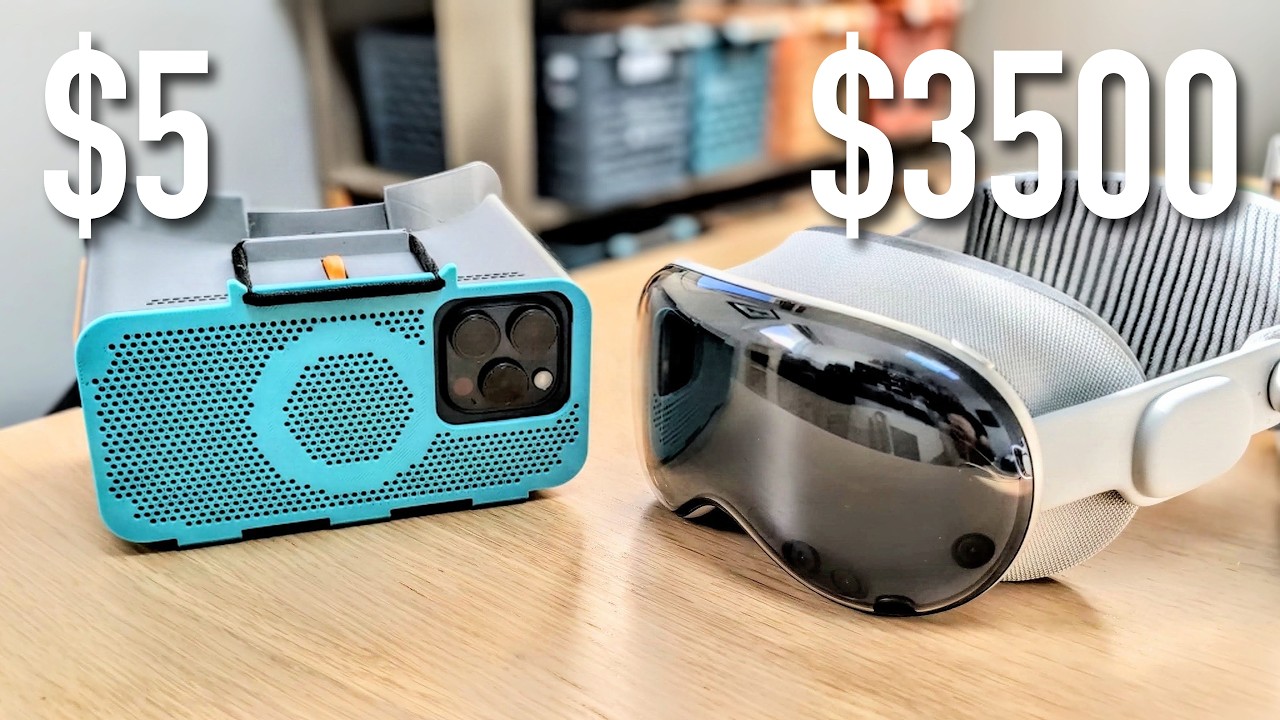
Print the viewer: the 3D print files for a mobile VR viewer made for modern smartphones are on MakerWorld: Mobile VR viewer for modern smartphones.
Two interactive pages go with the project. Click an image to open it.
From Cardboard to VR glasses: every headset since 2013, by launch price or form factor, and where phone VR fell away.

Inside the iPhone build: how the hardware, Apple's and Unity's frameworks and the app fit together, layer by layer.

The pages are in docs/, served by GitHub Pages.
For Android, download the APK from Releases on an ARCore phone (Android 10 or later, 64-bit, with Vulkan) and open it. Android asks you to allow installing apps from your browser or file manager. For iOS there's no download yet: build it from source, below.
- Unity 6000.6.0f1 with the Android and iOS build modules. The scripts expect it where Unity
Hub puts it; for another location, set
UNITY=/path/to/Unity.app/Contents/MacOS/Unity - For Android:
adbon yourPATH(it's in~/Library/Android/sdk/platform-tools) - For iOS: full Xcode, signed into an Apple ID (a free personal team is enough)
Close the project in the Editor before running any script: they build in batch mode, which needs the project lock.
Each script builds the app, installs it, launches it and prints the start of the session log.
zsh Tools/build_and_run.sh                                   # Android
zsh Tools/ios_build_and_run.sh                               # iOS
zsh Tools/ios_build_and_run.sh --xcode                       # iOS, reusing the last Unity export
zsh Tools/ios_launch.sh                                      # iOS, relaunch without rebuilding
Builds are release builds. For a development build (debuggable, with the Unity Profiler able to
connect over the local network), set CARDBOARDXR_DEVELOPMENT=1. The app id is
com.brenpoly.cardboardxr; an iOS bundle id belongs to the Apple team that first signed it, so to
build for your own iPhone pick your own, the same way for every script:
CARDBOARDXR_BUNDLE_ID=com.example.cardboardxr zsh Tools/ios_build_and_run.shThe Android script also runs the EditMode tests first. On iOS, the first install needs Developer
Mode on the phone (Settings > Privacy & Security, which only appears after a first install attempt)
and trusting the developer (Settings > General > VPN & Device Management). The phone must be
unlocked to launch; a build takes about five minutes, so if it auto-locks in the meantime, unlock
it and run ios_launch.sh.
Tools/release_android.sh 1.2.3 builds a release APK from a fresh clone of the public repository
(so it holds only the placeholder videos), signs it with your release keystore, checks the signature
and contents, and makes a draft GitHub release with it to review and publish. The script's header
says where the keystore and its password go.
Development overrides, given the same way on both platforms after the script's own arguments:
zsh Tools/build_and_run.sh --ei dof 3 --ei mono 1
zsh Tools/ios_launch.sh --ei dof 3 --ei mono 1
On Android they're intent extras; on iOS they reach the app as environment variables
(CARDBOARDXR_<name>). Either way they only apply to a launch from the Mac, not one from the
phone's home screen. The app logs the options it received at startup ([Stereo] Launch options).
| Option | Effect |
|---|---|
demo N |
Start in demo N (its index in Assets/_Project/Demos/DemoCatalog.asset, from 0) instead of the lobby |
pinch 0 |
Pinch-to-click off in 3DoF, for measuring its heat (it's otherwise always on) |
dof 3 |
Start the lobby in 3DoF, with no room scan (it starts in 6DoF passthrough otherwise) |
passthrough 1 |
Start with the camera passthrough view |
mono 1 |
One full-screen view with no lens distortion, for use without a viewer |
boundaryCm N |
Turn on the boundary warning: in VR, a grid on real surfaces within N cm |
arView 1 |
Debug view: the AR camera full screen with every detected surface drawn (forces 6DoF) |
fps N |
Target frame rate (default 120) |
renderScale N |
Eye texture resolution in percent (default 100) |
msaa N |
Anti-aliasing samples: 1, 2, 4 or 8 (default 2) |
handHz N |
Run the hand landmark model at most N times a second (default 0: every camera image) |
predictionMs N |
How far ahead head rotation is predicted, in ms (default 30) |
tracker 1 |
Head rotation from Android's game rotation vector instead of the app's own sensor fusion |
nativeImu 0 |
Android: read the sensors through the Input System instead of the native plugin |
imuPosition 0 |
Leave the accelerometer out of 6DoF position, for comparison |
handAxes 1..8 |
Override how the camera image's axes lie on screen, for hand tracking |
pinchStudy 1 |
A prompted run that logs pinch measurements, for tuning pinch detection |
uiScale N |
Size of the Material UI in percent of Android XR's dp sizes (default 160, for phone viewers' lower resolution) |
brightness N |
Screen brightness while the app is in front, in percent (default 90; 0 leaves it alone) |
- The screen's gear button, top right, opens a small menu: Set viewer scans a viewer's QR code; Phone view / Viewer view switches between the viewer's split-screen view and a single full-screen phone view; Open settings opens the settings panel.
- The app library, above the settings panel, has an icon for the lobby and each demo: look at one to see what it is, and pinch or tap to open it, from anywhere, so you can go straight from one demo to another. Apps on the settings panel shows and hides it. The lobby is a checkerboard room to start from, and opens with the library showing. As the app starts, the lobby is in 6DoF passthrough and first scans your room: look around at the floor and any tables until it says it's done (or tap Skip), so the demos start with tracking running and surfaces found. Each demo switches on what it needs (6DoF, passthrough, hands) and leaving puts back what you had.
- Input is gaze and pinch everywhere: look at something and pinch in front of the camera to
click it. A screen tap works too. The reticle turns light blue while the camera sees your hand.
In 6DoF demos, hand tracking does it (and picks things up); in 3DoF, a lighter detector that only
watches for pinches, from a plain camera feed, and slows down while no hand is in view.
Every pinch goes through one order (
PinchRouter): the palm's settings gear, then a button under the gaze, then the demo's own use (painting, hitting orbs), then picking up, then a plain click. If you rest your gaze on a button with no hand in the camera's view, a hint under the reticle says to raise it. - 360 Video plays 360 and VR180 videos, 2D or 3D. Pinch on the video for the controls. Two
small test clips are bundled. To bundle your own in local builds, put them in a
360folder beside the project (or setCARDBOARDXR_VIDEOS): the build scripts copy them intoAssets/StreamingAssets, which git ignores apart from the test clips. Or add your own to the app'sVideosfolder on the phone: on Androidadb push video.mp4 /storage/emulated/0/Android/data/com.brenpoly.cardboardxr/files/Videos; on iPhone, Finder's Files tab for the phone, then CardboardXR > Videos. Tags in the name set the format (_360,_180,_sbs,_tb,_mono). For Google Drive, put share links invideos.txtin that folder, one per line; each downloads on first play. - Air Paint paints strokes in the air with your hand, like Tilt Brush, starting in passthrough so you paint in your own room: pinch to paint, and look at the tool panel on your left and pinch to pick a color, brush (Ink, Tube, Glow) and size, or to undo, reset (press twice), or switch between passthrough and VR.
- Orb Rush is a one-handed game: orbs fly toward you and you hit them with your hand as they reach their rings. Face the way you want to play and press Start; Pause (on the score line above the track) resumes, restarts or quits a round. The best score is kept.
- Portal opens a doorway on your floor (look at it and pinch) with a night world beyond it. Walk through the frame, off the cable, and the world surrounds you, with your room showing through the door behind; walk back through to return. It's in passthrough, so all of it is flat.
- The settings panel, in every scene: hold a hand up with its palm toward you and a gear button appears between your thumb and index finger; pinch to open the panel in front of you. It has Apps (the app library), Recenter and Scan Room (in 6DoF: scans again, or ends a scan), and the toggles 6DoF and Passthrough. It follows you lazily as you turn; the X below it closes it. Look at a button and tap the screen, or pinch. Holding a tap recenters.
- Surfaces are found by the lobby's scan at launch, which runs until it finds nothing new. When 6DoF starts again later (after the 360 Video, say) a shorter scan runs until the floor is found, to save CPU for the hand models; the Cube Sandbox scans the whole room if the lobby's didn't.
- Placing and moving objects: in 6DoF, look at a surface and tap or pinch to place a cube, which is anchored there. Your head aims and a pinch clicks; your hand, or its ray, picks cubes up. A cube turns cyan when a pinch would grab it. Held, it turns with your hand and knocks other cubes aside; open your fingers to let go or throw it. Free cubes have physics: they fall, bounce off each other and land on detected surfaces. If the camera loses your hand while you hold one, it stays where it was rather than dropping.
Every launch writes a session log on the phone, replacing the last one (which is kept as
session-previous.log). The scripts print its start; to read the whole thing:
adb pull /storage/emulated/0/Android/data/com.brenpoly.cardboardxr/files/session.log # AndroidOn iOS, ios_launch.sh copies it to $TMPDIR/cardboardxr/ios-session.log.
Lines are tagged by area: [Pose] head tracking, [AR] the AR session, [Room] surfaces and the
floor, [Anchor] placed objects, [Hands] hand tracking and grabs, [Pinch] the pinch study,
[Passthrough], [Gaze] clicks, [Frames] and [Hitch] frame timing, [Stereo] setup, and
[Tracking] the motion sensors. Most areas log a status line every five seconds. Warnings and
errors are always kept.
To film what one eye sees, without the lens distortion, record the phone's screen while using the
app in the viewer, then flatten one eye with Tools/record_eye.py:
- iPhone: on the Mac, QuickTime Player > File > New Movie Recording, and pick the iPhone as the camera (over USB). The phone writes no file, so it costs little.
- Android:
scrcpy --record clip.mp4over USB, or the phone's own screen recorder.
python3 Tools/record_eye.py clip.mov --log session.log          # screen and viewer from the run's log
python3 Tools/record_eye.py clip.mov --phone iphone --fov 70    # Cardboard v1; narrower is sharper
It crops the left eye (--eye right for the other), undoes the distortion with the app's own lens
math, and writes a 1920x1080 (--size) H.264 clip next to the input; --start and --duration
trim it. In passthrough both eyes see the same image, so one eye is the whole experience.
/Applications/Unity/Hub/Editor/6000.6.0f1/Unity.app/Contents/MacOS/Unity -batchmode \
    -projectPath . -runTests -testPlatform EditMode -testResults results.xml
EditMode tests cover the parts that don't need a device: lens distortion and viewer QR profiles, sensor and pose fusion, the camera clock, hand geometry, pinch detection, depth sampling and palm calibration, floor picking, passthrough, gaze pointing and anchoring.
Only one XR loader can run at a time, and AR Foundation's (ARCore, ARKit) is the one that provides 6DoF, the camera and surfaces. So the app doesn't use Google's Cardboard plugin: it renders its own stereo views, with lens distortion ported from the Cardboard SDK.
Code is in Assets/_Project/Scripts, one assembly per area:
- Stereo — the stereo rig and lens distortion, head tracking (a gyroscope fusion corrected by AR poses), passthrough, surfaces, anchors, frame timing and the session log
- Hands — hand tracking with MediaPipe's BlazeHand models on Unity Inference Engine, placed in 3D and fed to XR Hands and the XR Interaction Toolkit; on iOS, LiDAR depth teaches the hand's size
- Interaction — gaze pointing and highlighting
- UI — a Material Design for XR kit (Material 3's baseline dark scheme, Roboto, Material Icons) sized in Android XR's dp, which every scene's UI is built from
- Demos — moving between the lobby and the demos, and what each demo needs from Core
- Tracking — sensor fusion and filters with no Unity dependencies
The app is one Core scene with the lobby and demos loaded on top. Core holds everything that
has to keep running across demos: the rig, head tracking, AR, hands, gaze and the settings panel. The lobby
and each demo are scenes loaded additively and unloaded on leaving; DemoManager switches between
them and demo scripts reach Core through CoreServices. A demo's scene, assets and scripts live in
Assets/_Project/Demos/<Name>/, and its entry in DemoCatalog.asset names its scene and what it
needs.
Core is generated, not edited by hand: Assets/Editor/ProjectBootstrap/StereoBuilder.cs
builds Core.unity and its materials on every build, so changes made to them in the Editor are
lost. The lobby and demos are edited by hand: DemoScenes.cs makes a starter scene or catalog
entry only when it's missing, and never overwrites one. ProjectSetup.Apply sets the player and XR settings for both platforms.
See KNOWN_ISSUES.md for current limitations and THIRD_PARTY_NOTICES.md for ported code and models.
The app works offline. The camera images used for tracking, passthrough and QR scanning are processed on the phone and never stored or sent anywhere. It goes online only when you ask:
- Scanning a viewer's QR code: short links on the code are followed over HTTPS, at most five redirects, until they reach a Cardboard viewer URL, as Google's Cardboard apps do.
- Google Drive videos listed in
videos.txt: each downloads from Google Drive on first play.
Unity's analytics, crash reporting and engine diagnostics are off. The session log stays on the phone (in the app's own storage) and holds tracking and performance figures, nothing personal.
Apache License 2.0; see LICENSE. Bundled third-party code, models and fonts keep their own licenses, listed in THIRD_PARTY_NOTICES.md.