███████╗███╗   ███╗ █████╗ ██╗  ██╗
██╔════╝████╗ ████║██╔══██╗██║  ██║
█████╗  ██╔████╔██║╚█████╔╝███████║
██╔══╝  ██║╚██╔╝██║██╔══██╗╚════██║
██║     ██║ ╚═╝ ██║╚█████╔╝     ██║
╚═╝     ╚═╝     ╚═╝ ╚════╝      ╚═╝
💜 A synthwave-infused dual-pane TUI file manager, forged in Rust 💜
Version 0.22.0 ▀▄▀▄ Neon Dreams Edition
⚠️ WARNING: ALPHA SOFTWARE⚠️ 🚧 This is a work in progress! 🚧
Things will break. Features may eat your files. Use at your own risk. Back up your data. Trust no one. Not even this README.
We're still soldering the circuits on this one, choom. 🔧
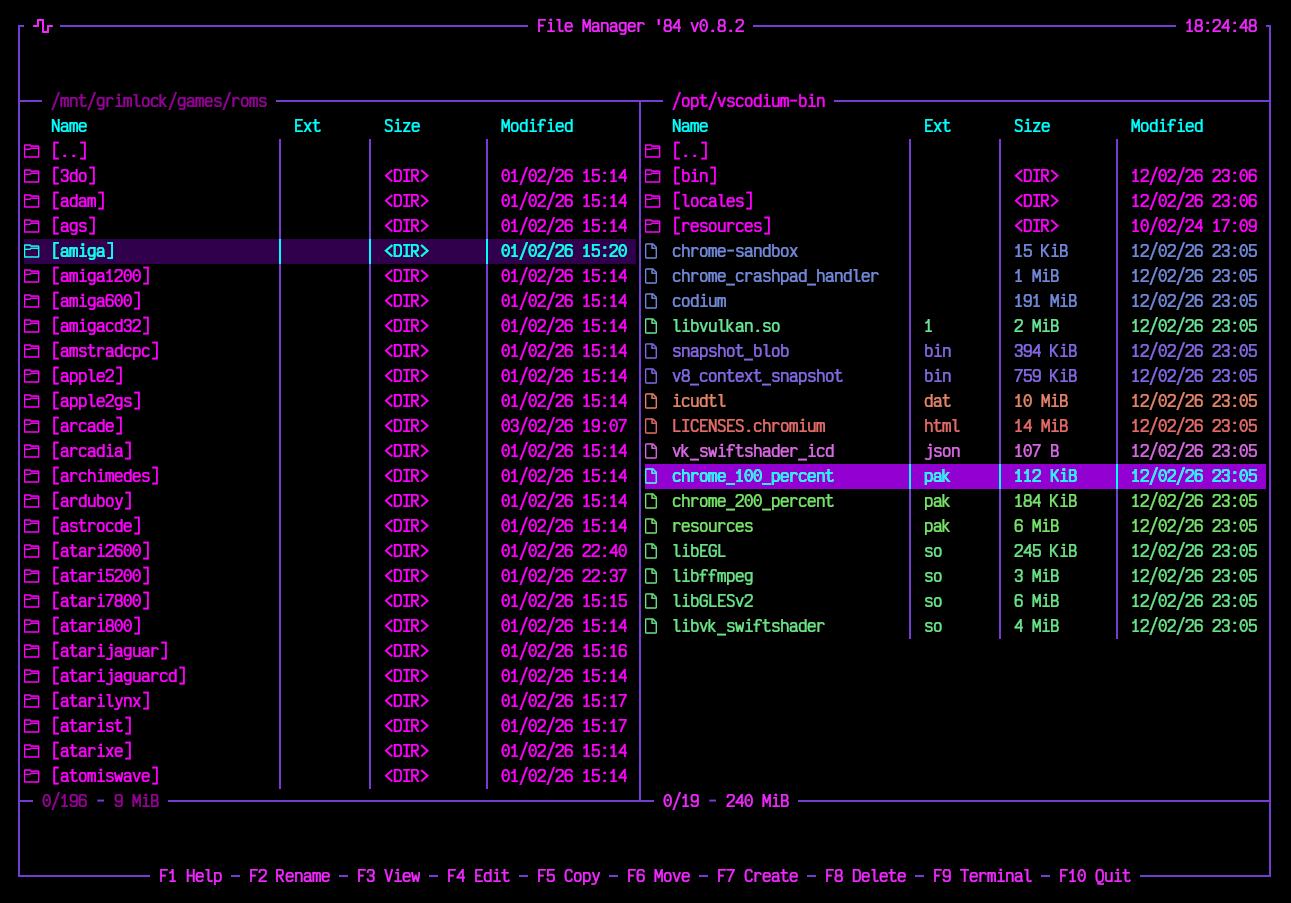 Dual panes 198 ROM folders beside a package tree. Each pane carries its own drive strip, the Name/Ext/Size/Modified/Attributes columns, and the free space on its own filesystem. |
 F11 - Options Panels, behaviour, appearance, viewer and editor. Every row changes in place with Enter or ←/→. |
 Outrun One of fifteen palettes - hot pink on near-black. |
 Nord The muted blue-grey end of the same range. |
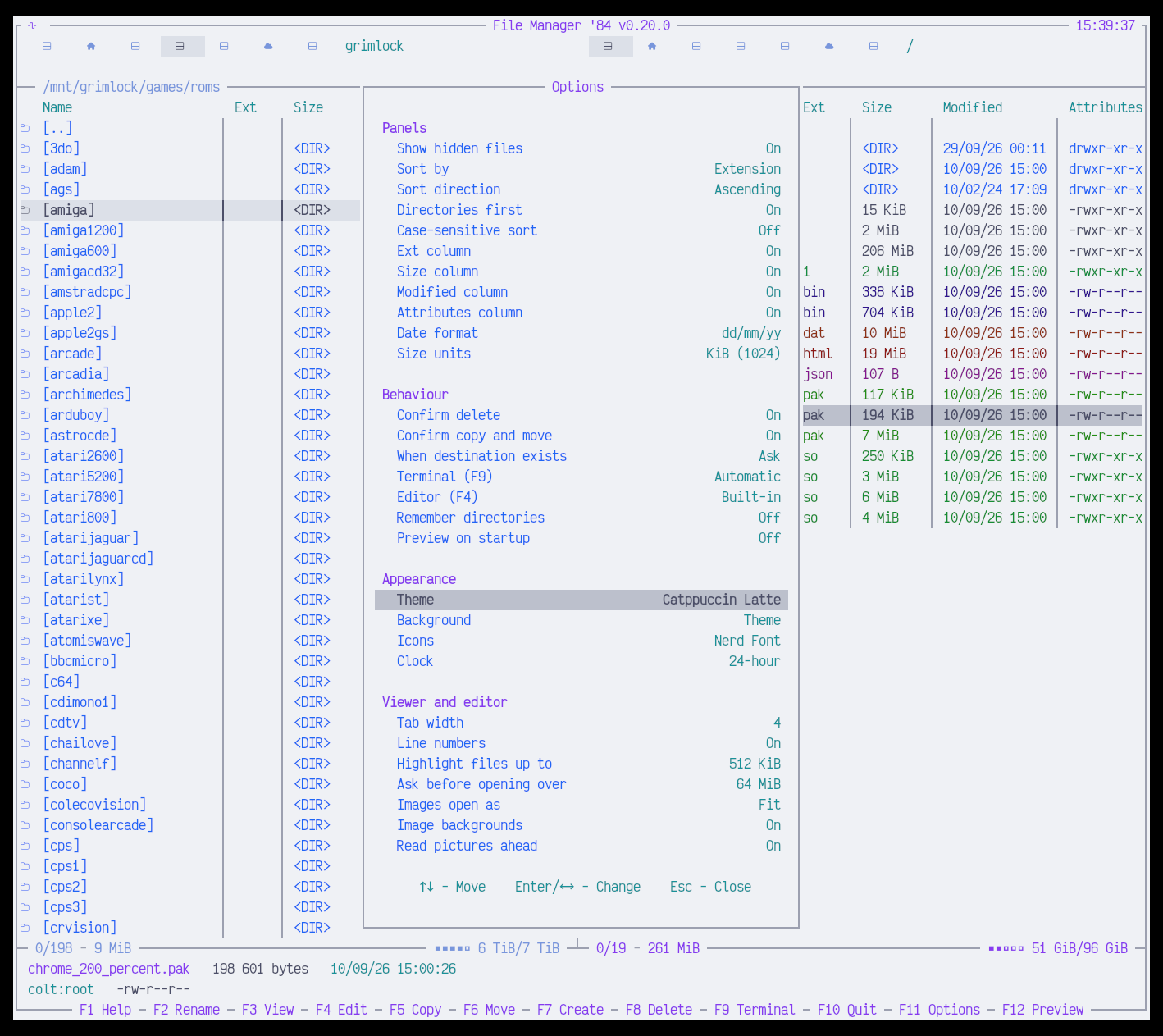 Catppuccin Latte Light themes too, and the whole interface follows the palette, viewer and editor included. |
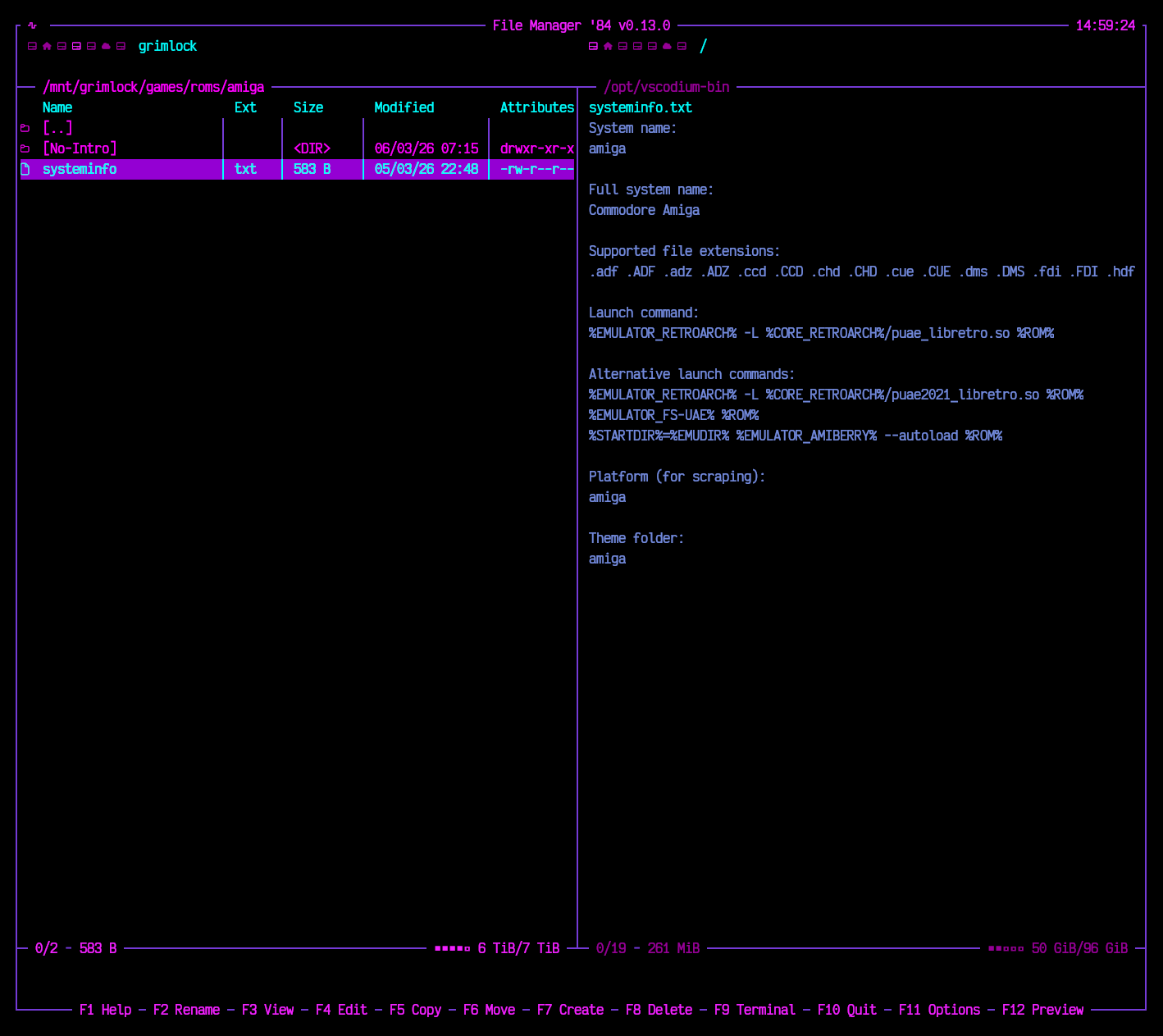
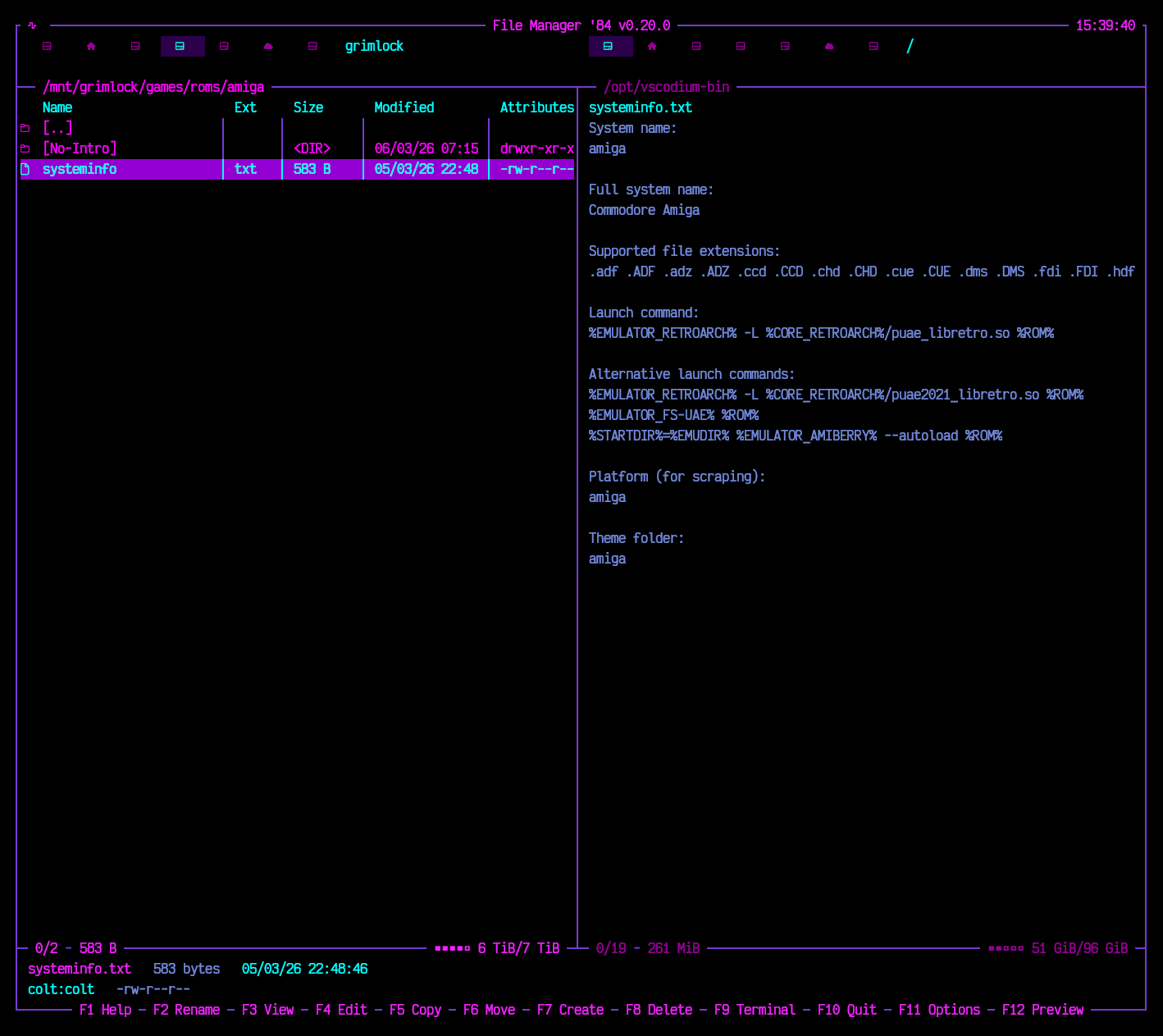 F12 - Preview The opposite pane shows whatever the cursor is on, without leaving the panel you are in. |
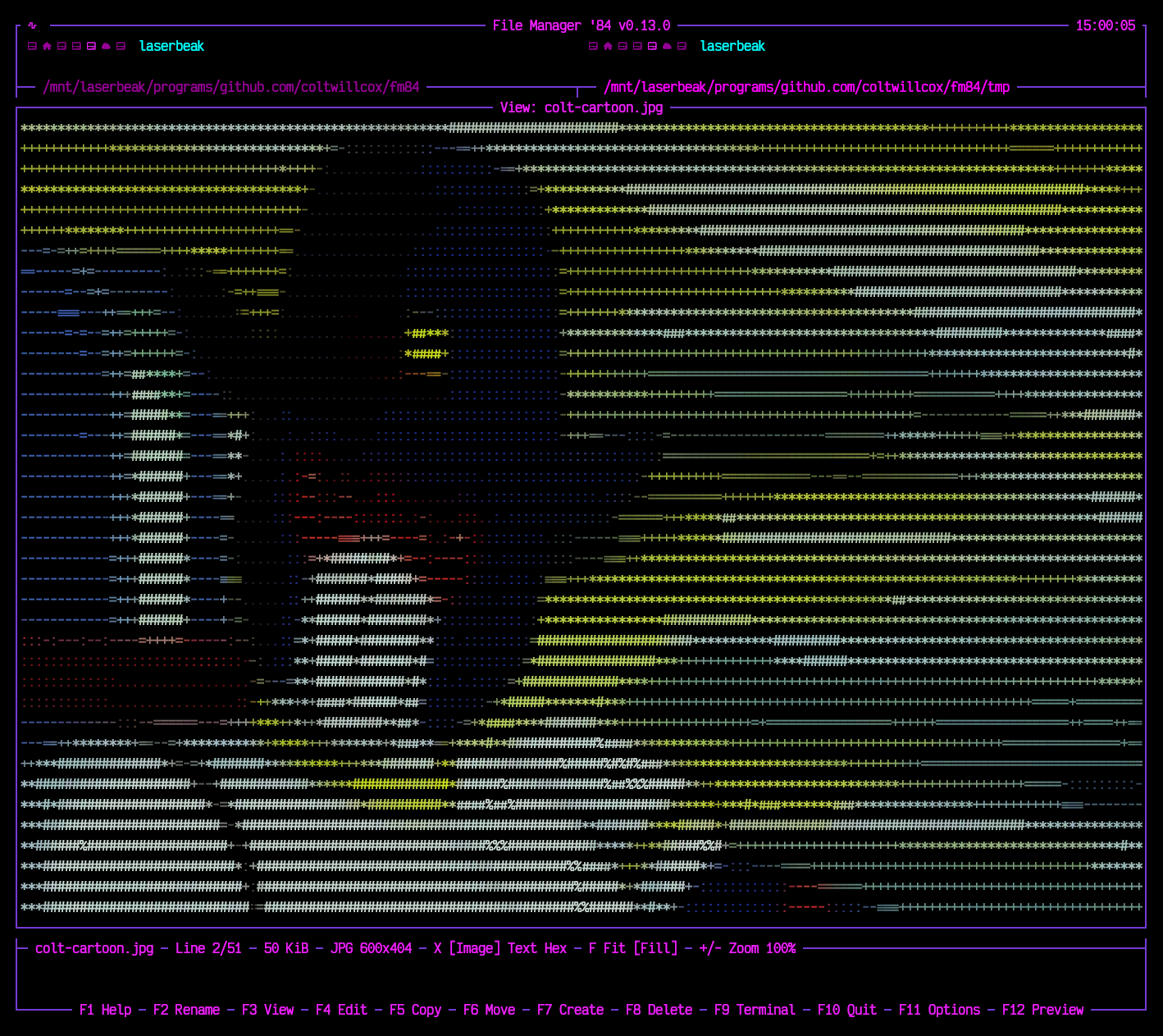
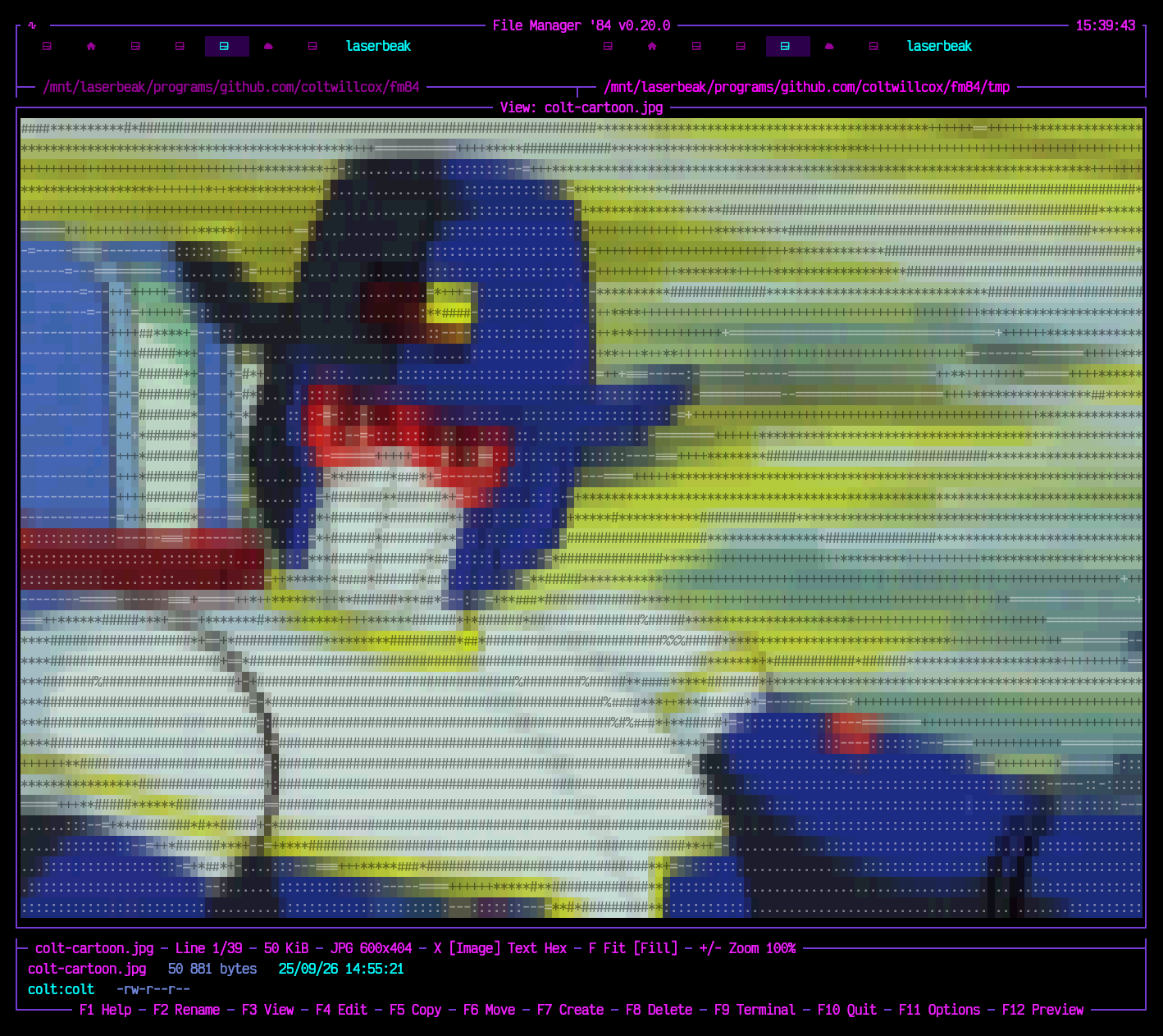 F3 - Images A JPEG as coloured ASCII, each character on its own colour. F switches Fit and Fill, +/- zoom, X cycles Image, Text and Hex. |
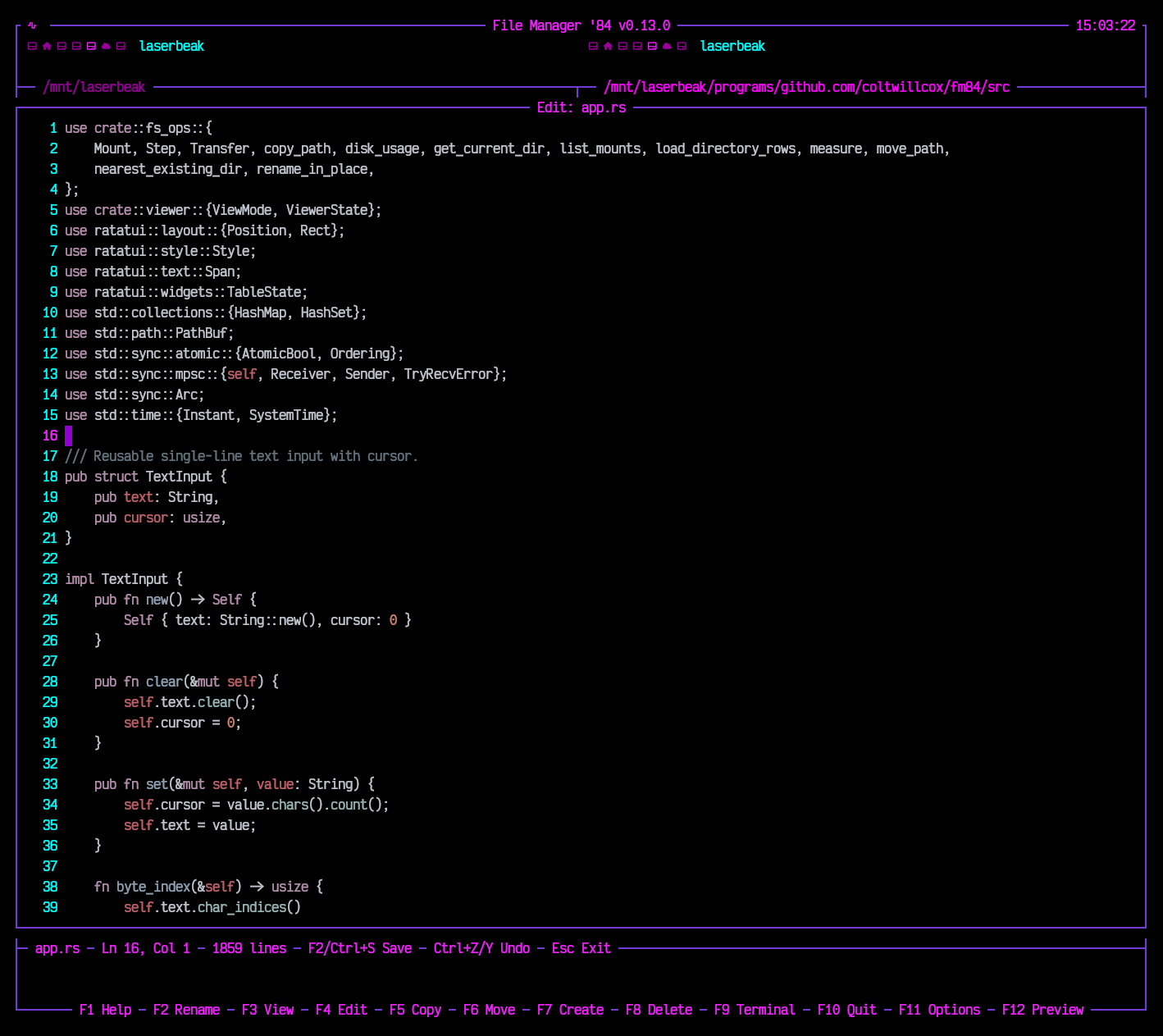
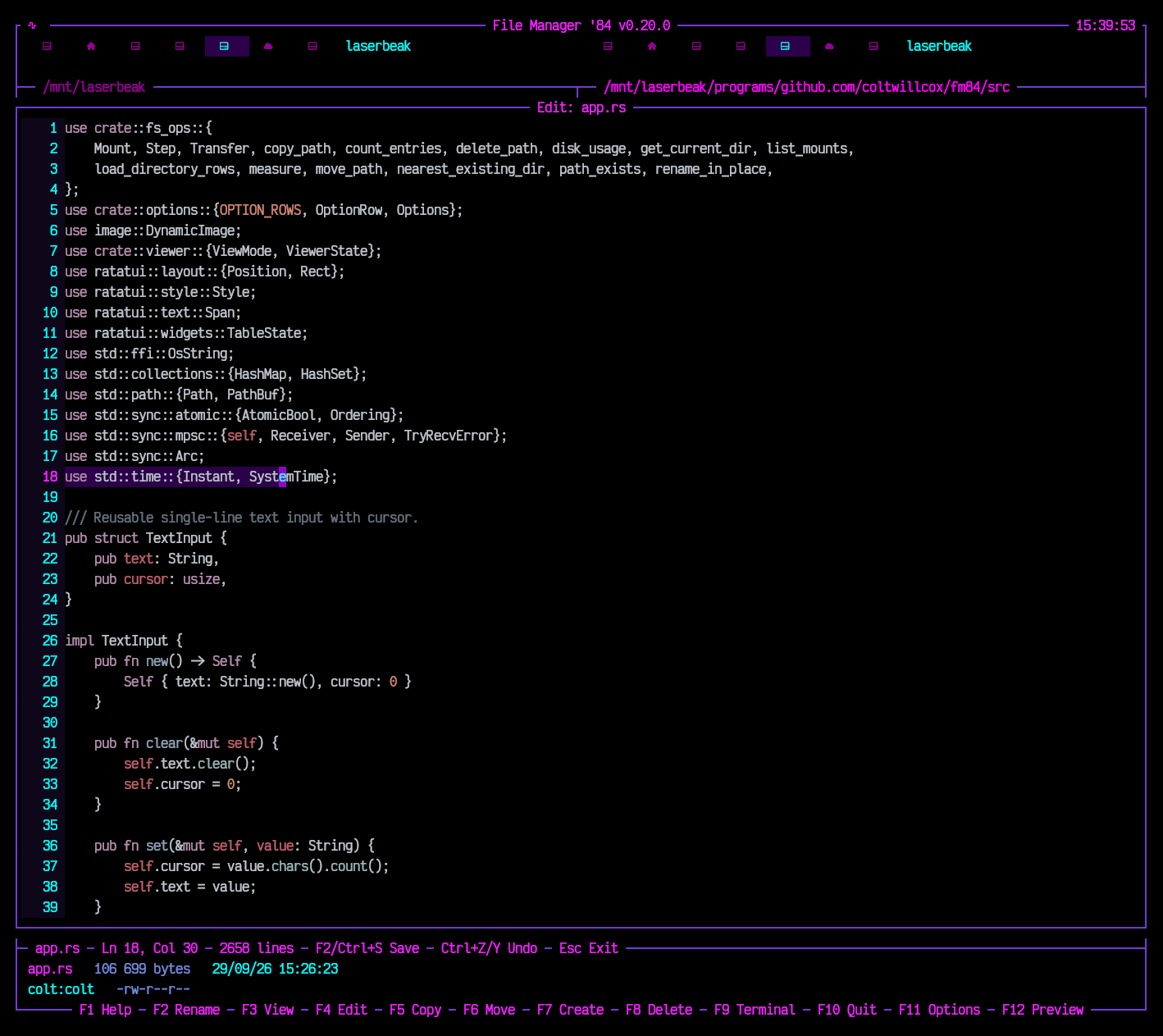 F4 - Editor Syntax highlighting, line numbers, selection and undo - editing fm84's own source. |
Step into the neon-lit streets of '84. Where files flow like synth waves and directories pulse with purple energy. FM84 is your retro-futuristic companion for navigating the filesystem - dual-pane style, just like the legends intended.
Built with 💜 in Rust using Ratatui + Crossterm.
- 📁 Dual-pane layout - because one panel is never enough
- ⌨️ Arrow keys - glide through your files
- 🏠 Home/End - teleport to the edges
- 📄 PageUp/PageDown - cruise in style
- 🔀 Tab - switch between panels like flipping cassettes
- ↩️ Enter - dive into directories
- ⬅️ Backspace - ascend to parent realm
- 🔗 Symlinked directories - listed and entered like the real thing
- 🔒 Directories you cannot read - refused with the reason, and the panel stays where it was
- 💿 Drive switcher - click a drive icon, or use Alt+F1 / Alt+F2 (or Ctrl+F1 / Ctrl+F2), to send either panel to a mount; the one each panel is on sits in a block of colour, and removable and optical media get their own icons, including a USB stick mounted under
/run/media
- 🔎 Type-ahead search - just start typing to find files
- ⬆️⬇️ Navigate matches - Up/Down arrows jump between results
- 🧹 Esc - clear the search vibes
- F1 💡 - Help/About
- F2 ✏️ - Rename files & folders (arrows, Home/End, Backspace and Delete while typing, the field scrolling to keep the cursor in view on a long name); a change of case alone works on macOS and Windows too
- F3 👁️ - View files (text, hexdump, or images as ASCII art); Esc closes the viewer, F3 inside it finds the next match
- F4 📝 - Edit files with syntax highlighting (Ctrl+S to save, Esc to close with an unsaved changes prompt, mouse click to position cursor)
- F5 📋 - Copy to other panel (selected items or cursor item), keeping permissions where the filesystem can hold them
- F6 📦 - Move to other panel (selected items or cursor item)
- ♻️ Names already taken - F5 and F6 ask before writing over them: files are replaced, directories merged. F11 can make it overwrite or refuse without asking
- 📊 Progress while copying, moving and deleting - a bar with the current file, how far along it is and the transfer rate; Esc cancels, and a cancelled copy cleans up the half-written file. The work runs off the interface thread, so a slow or stalled disk cannot freeze the display
- 🧯 One bad entry doesn't sink the job - a file that will not copy, move or delete (a socket, a pipe, a permission refused, a disk full) stops the job and asks: R retry, S skip, A skip all, Esc abort. A skipped entry is left where it was, and a directory holding one stays with it, so a move never leaves anything gone from both sides. The end says how many were skipped
- 🚪 A way out of an operation that will not finish - F10 during one offers to leave; a second F10 takes it, for a disk that has stopped answering and never notices the cancel
- F7 📂 - Create new directories (Shift+F4 for an empty file); same editing keys as rename
- F8 / Delete 🗑️ - Delete files & folders (selected items or cursor item, with confirmation - which F11 can turn off - and progress)
- F9 💻 - Open external terminal in current directory (which one is set under F11)
- F10 🚪 - Exit to the void
- Space / Insert ✅ - Select/deselect files for batch operations
- 🖱️ Double-click - open directories or view files
- 🖱️ Mouse scroll - scroll content in Viewer, Editor, and file panels
- 👀 Automatic refresh - panels notice when their directory changes on disk and reread themselves, and the preview and the detail lines are gathered again with them
- ⌨️ Ctrl+R - force an immediate reload of both panels
- 🧭 Vanished directories - if the open directory is deleted, the panel climbs to the nearest surviving parent
- 🤫 Stays out of the way - never reloads while a dialog, Viewer or Editor is open
- 📋 Name, Ext, Size, Modified, Attributes - permissions written the way
ls -lwrites them - 📐 Priority when space runs short - columns drop from the right, Name always stays and keeps the leftover width
- 🎛️ Your choice of them - F11 turns each one off, and sets how dates and sizes are written
- 🔤 Any name the filesystem allows - a name that is not valid UTF-8 is shown as near as it can be read and still opens, renames, copies and deletes as itself; operations work from the name the filesystem holds, never from what it looked like on screen - selection, the F4 and F9 commands and remembered directories included
- 🛡️ Names neutralised - a file name can hold anything but
/, escape sequences and tabs included. They are drawn as dots rather than sent to the terminal, wherever a name appears: the rows, the detail lines, the preview, the titles and every popup
- 📈 Panel stats - selected/total file count and size shown per panel
- 💽 Disk usage - a meter and used/total for each panel's filesystem, shortening then stepping aside on narrow terminals
- 🎨 Active/inactive styling - active panel stats highlighted, inactive dimmed
- 📋 Two lines under the panels - what the columns have no room for: the whole name however long, the exact byte count, the timestamp to the second,
owner:group, the permission bits, and where a symlink points - ✂️ Narrow terminals - whole fields are given up from the right rather than cut mid-figure, and the name shortens from the front so the extension survives
- 🖼️ Bordered frame with filename title bar
- 📊 Line numbers in the gutter (F11 can hide them)
- 🔢 Status bar - filename, line count, file size, detected syntax
- 🔢 Hex view - binaries open as a
hexdump -C;Xtoggles hex for any file, so you can eyeball a BOM or CRLF endings - 🖼️ Images as ASCII art - PNG, JPEG, GIF, WebP and BMP drawn in colour, each character on its own coloured background so the dark parts keep their colour;
Xcycles Image, Text and Hex,Fswitches between fitting the whole picture in, centred, and filling the viewer; which one a picture opens with, and whether backgrounds are drawn, is set under F11 - 📄 Step through a folder's pictures - PageUp and PageDown move to the next picture and the previous one, wrapping round and stepping over anything that is not one; the neighbours are decoded ahead so each arrives without a pause (F11 can turn that off)
- 🖱️ Drag a picture - hold the mouse down on it and it follows the pointer, both directions at once
- 📐 True proportions - the shape of a picture is worked out from the size of your terminal's cells, which it is asked for, rather than from an assumption about them; a terminal that will not say gets the usual 2:1
- 🔍 Zoom -
+and-scale a picture from a quarter of the fitted size to four times it, keeping whatever is in the middle of the view in the middle - 🖱️ Mouse selection - drag to select, Ctrl+C to copy
- 🔎 Find - Ctrl+F asks what to look for, F3 and Shift+F3 go to the next and previous match, round the ends of the file. Every match on screen is underlined and the current one selected, ready for Ctrl+C. Lower case matches either case, a capital only itself. In hex view it searches the dump as shown
- 🔢 Go to line - Ctrl+G, then the number
- 🛡️ Escape sequences neutralised - a file full of control codes can't hijack your terminal
- ❓ Large file prompt - asks before pulling anything over 64 MiB into memory (16 or 256 under F11), and before decoding a picture that needs over 256 MiB of it - a few hundred KB of PNG can unpack to hundreds of MB
↔️ Horizontal scrolling - Left/Right keys and mouse scroll wheel, stopping at the longest line- 🖱️ Mouse scroll - vertical and horizontal scrolling with the scroll wheel
- 🌈 Syntax highlighting for Rust, Python, JS, TS, JSON, TOML, YAML, Markdown, Shell, C/C++, HTML, CSS
- ⚡ Incremental highlighting - typing re-parses from the edited line, so speed doesn't fall off in long files
- 📏 Highlighting limit - files over 512 KiB open as plain text, since the first parse takes about 0.9s per MB; F11 moves it to 256 KiB or 2 MiB, or turns highlighting off
- ↩️ Line endings preserved - a CRLF file stays CRLF when saved
- 🖼️ Bordered frame with filename and modified indicator in title bar
- 📄 Full text editing - cursor navigation, insert, delete
- ✂️ Select, cut, copy, paste - Shift+arrows to select, Ctrl+A for all, Ctrl+X/C/V (or Ctrl+Insert, Shift+Insert, Shift+Delete)
- ↩️ Undo and redo - Ctrl+Z, then Ctrl+Y or Ctrl+Shift+Z, 200 steps deep, one step per action rather than per keystroke burst; a key that changes nothing costs no step
- 📋 System clipboard - copies reach it over OSC 52, pastes arrive as bracketed paste, both without linking a clipboard library
- 💾 Save - F2 or Ctrl+S, written beside the file and swapped in whole, so a full disk or a crash mid-save leaves the old file rather than half of the new one; links, permissions and owner are kept
- 📍 Line/Column tracking - always know where you are
- 🔎 Find and go to line - Ctrl+F, F3 / Shift+F3 and Ctrl+G, as in the Viewer; the match found is selected, so typing replaces it
⚠️ Unsaved changes prompt - Save/Discard/Cancel dialog on close; a save that fails keeps the editor open, edits and all↔️ Horizontal auto-scroll - viewport follows cursor past the right edge- 🖱️ Mouse scroll - vertical and horizontal scrolling with the scroll wheel
- 🖱️ Mouse click and drag - click to position the cursor, drag to select
- 🪞 Opposite panel - shows the head of whatever the cursor is on, and follows it
- 📁 Directories - item count instead of contents
- 🔢 Binaries as a hexdump - no longer just "Binary file": the head of it in hex with the printable characters beside it, at 16, 8 or 4 bytes a row depending on how much room the pane has
- 🪶 Bounded - reads at most 64 KiB of a text file and 4 KiB of a binary, never prompts, never loads a whole file, and never opens a pipe or a device
Grouped under four headings; the list scrolls on a short terminal.
Panels
- 🙈 Show hidden files - dotfiles, or on Windows anything with the hidden attribute
- 🔃 Sort by Name, Extension, Size or Modified, ascending or descending
- 📁 Directories first - or mixed in among the files
- 🔠 Case-sensitive sort - off by default, so
readmeandREADMEsit together - 🧱 Ext, Size, Modified and Attributes columns - each on or off; with Ext off, Name shows the whole file name
- 📅 Date format -
dd/mm/yy,yyyy-mm-dd, or relative (3 h ago) - 📏 Size units - KiB (1024) or kB (1000), everywhere a size is shown
Behaviour
- 🗑️ Confirm delete and ✅ Confirm copy and move - turn off to skip the question
- ♻️ When destination exists - Ask, Overwrite (files replaced, directories merged) or Refuse. A file never replaces a directory or the other way round, and nothing is copied onto itself
- 💻 Terminal (F9) - any command,
{}standing for the directory; left empty, one is picked for you - 📝 Editor (F4) - an external editor such as
nvimorhx, which gets the terminal until it exits;{}stands for the file, which otherwise goes last. Left empty, the built-in editor opens - 📍 Remember directories - reopen both panels where they were when fm84 last quit
- 👁️ Preview on startup - start with F12's preview open
Appearance
- 🎨 Theme - switched on the spot, 15 of them:
- fm84's own: Synthwave, Outrun, Vaporwave, High contrast
- dark: Dracula, Monokai, Nord, Gruvbox Dark, Solarized Dark, Tokyo Night, Catppuccin Mocha
- light: Solarized Light, Gruvbox Light, Catppuccin Latte, GitHub Light
- each brings its own background, gutter and syntax colours; on a light one, extension colours darken and pictures draw dark ink on the light background
- 🖌️ Background - the theme's own, or the terminal's for a transparent or custom one. A light theme needs its own: on a dark terminal its text would all but vanish
- 🔣 Icons - Nerd Font, Nerd Font Mono (drops the padding a wide glyph needs, so icons stay centred), or Plain letters for a terminal without a Nerd Font
- 🕐 Clock - 24-hour, 12-hour, or off
Viewer and editor
-
⇥ Tab width - 2, 4 or 8 columns, in the Viewer, the Editor and the preview
-
📊 Line numbers - on or off, in the Viewer and the Editor
-
🌈 Highlight files up to 256 KiB, 512 KiB or 2 MiB, or never
-
❓ Ask before opening over 16, 64 or 256 MiB
-
🖼️ Images open as Fit or Fill
-
🎨 Image backgrounds - on or off. On, each character sits on its own colour, so the dark parts of a picture keep theirs instead of showing the terminal through the gaps in the glyphs. Off costs less to send, which matters over a slow link
-
⚡ Read pictures ahead - decode the pictures either side of the one open, so PageUp and PageDown do not wait for each. Costs a few megabytes and a thread that wakes only while a picture is open
-
⌨️ Up/Down to move, Enter, Space or Left/Right to change, Enter again to save a typed command
-
💾 Saved as you go to
~/.config/fm84/config($XDG_CONFIG_HOMEif set,%APPDATA%\fm84\configon Windows) - plainkey = valuelines, fine to edit by hand. Remembered directories go insessionbeside it
- 📏 Calculated on select - press Space on a directory to calculate its size
- 🧵 Counted in the background - the Size column shows the running total with a
…while it counts, the panels keep answering, and Esc stops it; a slow disk or a huge tree no longer holds up the interface - 📌 Persistent display - sizes stay visible after deselecting, until a copy, move or delete may have changed them
| Key | Action |
|---|---|
↑ ↓ ← → |
Navigate |
Tab |
Switch panels |
Enter |
Open directory / Execute |
Backspace |
Go to parent directory |
Home / End |
Jump to first / last item |
PageUp / PageDown |
Page navigation |
[a-z0-9] |
Quick search |
Esc |
Clear search / Close dialogs, the Viewer and the Editor / Stop directory sizing |
F1 |
Help |
F2 |
Rename |
F3 |
View file |
F4 |
Edit file (built-in, or the editor set under F11) |
F5 |
Copy to other panel |
F6 |
Move to other panel |
F7 |
Create directory |
Shift+F4 |
Create empty file |
F8 / Delete |
Delete (selected items or cursor item) |
Esc |
Cancel a running copy, move or delete |
R / S / A |
Retry / Skip / Skip all, when an entry in a copy, move or delete fails |
F9 |
Open terminal (the one set under F11, if any) |
F10 |
Quit (twice during an operation) |
F11 |
Options - panels, behaviour, appearance, viewer and editor |
F12 |
Preview cursor file in other panel |
Alt+F1 / Alt+F2 |
Choose a drive for the left / right panel (Ctrl works too, or click an icon) |
X |
Toggle hex view; cycle Image, Text, Hex for images (in Viewer) |
F |
Fit or fill an image (in Viewer) |
PageUp / PageDown |
Previous / next picture in the folder (in Viewer) |
Drag |
Move a picture about (in Viewer) |
+ / - |
Zoom an image in or out (in Viewer) |
Shift+arrows |
Select text (in Editor) |
Ctrl+A |
Select all (in Editor) |
Ctrl+X / Ctrl+C / Ctrl+V |
Cut / Copy / Paste (in Editor) |
Ctrl+Z |
Undo (in Editor) |
Ctrl+Y / Ctrl+Shift+Z |
Redo (in Editor) |
Ctrl+C |
Copy selection (in Viewer) |
Ctrl+F |
Find (in Viewer and Editor) |
F3 / Shift+F3 |
Next / previous match (in Viewer and Editor) |
Ctrl+G |
Go to line (in Viewer and Editor) |
Space / Insert |
Select/deselect file |
Ctrl+R |
Reload both panels |
Scroll |
Scroll content (panels, Viewer, Editor) |
# 🦀 Clone the future
git clone https://github.com/coltwillcox/fm84.git
cd fm84

# ⚙️ Compile with cargo
cargo build --release

# 🚀 Launch into the neon grid
cargo run --releasefm84 # panels where you left them (or the current directory)
fm84 ~/Music # left panel in ~/Music
fm84 ~/Music /mnt # left in ~/Music, right in /mnt
fm84 --help # usage, and where the config lives
fm84 --version # fm84 0.22.0A directory that does not exist is reported in the shell before anything starts. -- ends the options, for a directory whose name starts with a dash.
Debug builds compile dependencies optimised too, so a plain cargo run still decodes images at full speed. The first debug build takes a little longer for it.
Pre-built binaries beam down from the neon sky:
| Platform | Architecture | Format |
|---|---|---|
| 🐧 Linux | x86_64, ARM64 | .tar.gz |
| 🍎 macOS | Intel, Apple Silicon | .tar.gz |
| 🪟 Windows | x86_64 | .zip |
# 📥 Download from GitHub Releases
# https://github.com/coltwillcox/fm84/releases

# 🎮 Extract and run
tar -xzf fm84-v*.tar.gz
./fm84
No cargo? No problem. Grab a binary and jack in. 🔌
- 🦀 Rust (2024 edition)
- 🖥️ ratatui - TUI framework
- ⌨️ crossterm - Terminal magic
- 🎨 syntect - Syntax highlighting
- 🖼️ image - Decoding pictures for the Viewer
- 🕐 chrono - Time vibes
╔══════════════════════════════════════╗
║  VIOLET DREAMS • PURPLE HAZE • NEON  ║
║    ▓▓▓▓▓ SYNTHWAVE FOREVER ▓▓▓▓▓     ║
╚══════════════════════════════════════╝
The default Synthwave palette channels pure 80s energy (F11 swaps it for any of 14 others, light ones included):
- 🖤 Black background -
#000000 - 💜 Violet borders -
#743AD5 - 🔮 Purple selections -
#9400D3 - 💗 Magenta directories -
#FF00FF - 🩵 Cyan accents -
#00FFFF - 💙 Soft purple files -
#7289DA
- 🌅 FM-84 (the band, obviously)
- 🖥️ Midnight Commander
- 🎮 Total Commander
- 🌆 Synthwave aesthetics
- 📼 That retro terminal feel
Ride free through the neon grid.
Released under the MIT License - use it, change it, ship it, keep the notice.
💜 FM84 💜
Where every file operation feels like a synth drop
▀▄▀▄▀▄ v0.22.0 ▄▀▄▀▄▀