


LinOffice enables you to run Microsoft Office applications in Linux. In the background, it runs a virtual machine with Windows and Office installed which is then accessed via FreeRDP. LinOffice's aim is to be a "1-click" setup for Microsoft Office in Linux.
By default, Microsoft Office 2024 (Home & Retail) is installed, containing Word, Excel, Powerpoint, Onenote and Outlook. If you have a Microsoft Office 365 subscription you can log in with your Microsoft account and it should upgrade from 2024 to 365.
The project utilises Winapps, Dockur/Windows, FreeRDP, Podman, and Qemu. You can run LinOffice alongside WinApps - all the names and RDP ports have been changed to avoid conflicts between the two.
 .
.
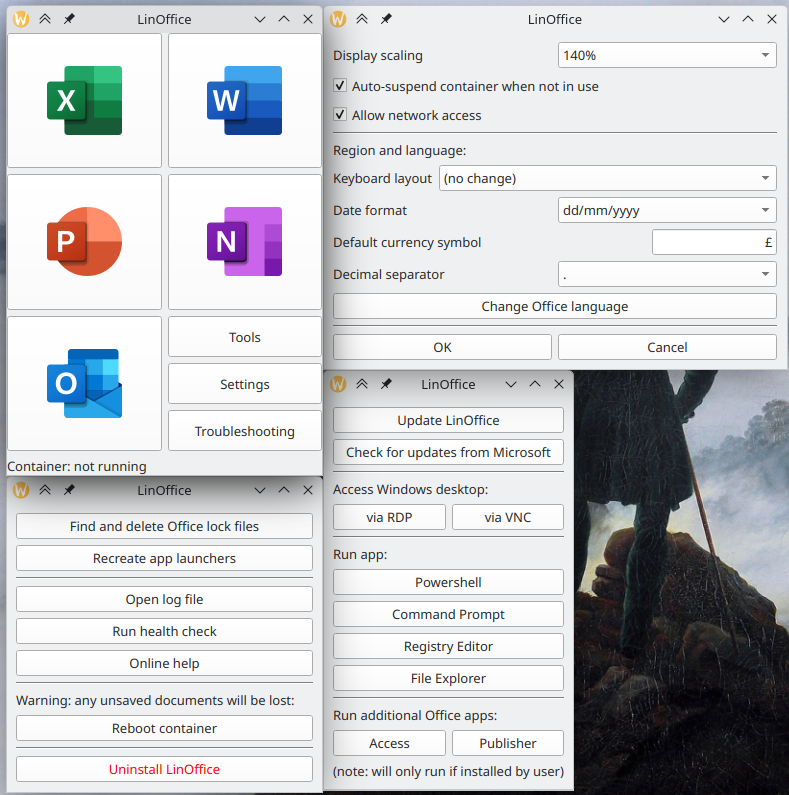
- Automatic non-interactive setup
- Run Microsoft Office apps as if they were native Linux apps
- Office apps have access to /home folder and Linux clipboard
- Run Publisher or Access, if manually installed by user
- Quickly access useful tools such as Powershell, Command Prompt, Windows Explorer, Registry Editor, Office Language Settings
- Run a full Windows session via RDP or VNC
- Automatic suspension of the Windows container when inactive, resume when starting an Office app
- Automatic deletion of Office lock files (like
~$file.docx) - Force time sync in Windows after Linux host wakes up from sleep, to avoid time drift (time zone is always set to UTC for simplicity)
- Automatic detection of language, date format, thousand and decimal separator, currency symbol, keyboard layout etc
- Toggle settings such as display scaling, auto-suspend on/off, network on/off (to prevent Windows and Office from "phoning home")
- Circumvent geo-blocking for the Office installation
- Install updates for Windows and Office
- Tidy Quick Access pane in Windows File Explorer
- Automatically debloats Windows and disables telemetry and ads, using Win11Debloat
- Troubleshooting functions e.g. force cleanup of Office lock files, recreate .desktop files for the Office apps, reboot the Windows container, container health check
- Flatpak version. It bundles most dependencies. Only Podman needs to be installed separately. See Installation.
Planned features
- Translations for the GUI
- AppImage
- ARM support (should be possible as both Windows and Office have ARM versions)
- Better support for non-core Office apps (e.g. Access, Publisher, Visio)
- Support for older Office versions (e.g. 2016, 2019, 2021)
Click here for a comparison of LinOffice with other options to run Microsoft Office in Linux, such as a plain Windows VM, WinApps, Winboat, Crossover, PlayOnLinux, and Bottles.
LinOffice is the best choice if you want a recent Microsoft Office (2024 or 365) that integrates well into Linux (app launchers, file associations, home folder access, clipboard sharing) while keeping setup simple.
It is a focused fork of WinApps that automates most of the VM setup and adds Office-specific improvements. Because the Office apps run on real Windows, they work as Microsoft intended - unlike Wine-based options (Crossover, PlayOnLinux, Bottles), which are limited to older Office versions and suffer from more bugs and crashes features.
Use LinOffice if you mainly need Office, have enough RAM/CPU/storage for a Windows VM running in the background, and prefer an easy automated setup over manual configuration.
Prefer alternatives if you also want to run other Windows apps the same way (in which case I would recommend WinApps or Winboat instead), cannot or do not want to run a resource-heavy VM in the background (try the Wine-based options), or need a completely bug-free experience (a plain Windows VM without FreeRDP integration may be more stable, though less integrated).
Hardware requirements:
- Enough resources for the Windows virtual machine (up to 4 GB RAM, 64 GB storage, and 4 CPU cores). Setup checks for at least 8 GB RAM and 64 GB free storage before it continues.
- Virtualization support (KVM)
- An x86_64 CPU (ARM is not supported yet)
- A fast Internet connection. Setup downloads several GB from Microsoft.
This is the easiest way to install LinOffice, provided you have Flatpak installed on your system. If not, see here.
The Flatpak bundles various dependencies such as FreeRDP, podman-compose, Python, and PySide6. Two things still have to be installed on your system:
The first time you open LinOffice, it downloads Windows and Microsoft Office (about 8 GB) and installs them. You need your own Office license.
Click the button above, or open the install page. Your browser asks to open Discover or GNOME Software, which adds the LinOffice repository and installs LinOffice. If the browser only downloads a file, open io.github.eylenburg.LinOffice.flatpakref.
Alternatively, you can install the LinOffice flatpak with one command:
flatpak remote-add --if-not-exists --user linoffice https://eylenburg.github.io/linoffice/index.flatpakrepo && flatpak install --user linoffice io.github.eylenburg.LinOfficeDo these steps in order. Step 3 is optional.
You need:
- Podman
- podman-compose
- FreeRDP 3
- Python 3 and PySide6 (for the GUI)
Warning
FreeRDP 3.23 does not work with LinOffice. If your distribution ships 3.23, downgrade to 3.22 or upgrade to a newer version.
Below are some distribution-specific commands to install the dependencies:
Debian 13 and newer, Ubuntu 24.10 and newer
sudo apt install podman podman-compose freerdp3-x11 python3 python3-pyside6 python3-pyside6.qtwidgets python3-pyside6.qtuitoolsNote
Debian 12 and Ubuntu 24.04 users are advised to install the Flatpak version.
Fedora
sudo dnf install podman podman-compose freerdp python3 python3-pyside6Note
On Fedora Atomic (Silverblue, Kinoite, and similar), installing the Flatpak version of LinOffice is easier.
openSUSE
sudo zypper install podman podman-compose freerdp python3 python3-pyside6Arch Linux
sudo pacman -S --needed podman podman-compose freerdp python pyside6OpenMandriva
sudo dnf install podman podman-compose freerdp python pyside6Download the zip from the releases page, unpack it, and put the contents into ~/.local/bin/linoffice.
Skip this step to accept the defaults (Windows 11 Pro, 4 GB RAM, 4 CPU cores, 64 GB disk).
If you do want to change something, edit the templates before you run the LinOffice setup:
~/.local/bin/linoffice/config/compose.yaml.default— Windows version, RAM, CPU cores, disk size~/.local/bin/linoffice/config/linoffice.conf.default— display scaling, auto-suspend, extra FreeRDP flags
Don't want to use Windows 11?
Windows 11 Pro is the default. Windows 10 is a bit snappier. To install it, replace VERSION: "11" with VERSION: "10" in config/compose.yaml.default before the first start.
Mainstream support for Windows 10 ended in October 2025. After installation you can use Microsoft Activation Scripts (MAS) to receive Extended Security Updates until 2028. Alternatively, Windows 10 LTSC 2021 still receives security updates until 2032. For that image, set VERSION to https://archive.org/download/Windows10EnterpriseLTSC202164Bit/en-us_windows_10_enterprise_ltsc_2021_x64_dvd_d289cf96.iso.
cd "$HOME/.local/bin/linoffice" && python3 gui/linoffice.pyThis opens the installer. It downloads about 8 GB and installs Windows, then Office. On a 2023 mid-range laptop with a 250 Mbps connection, that took about 15 minutes (about 3 minutes to download Windows, 8 minutes to install it, and 4 minutes to download and install Office).
When it finishes, Word, Excel, PowerPoint, OneNote, Outlook, and LinOffice should appear in your application menu.
If setup succeeds, please share your system setup. That helps show where LinOffice works without extra steps.
Warning
This installation option is deprecated. Most users are advised to install the Flatpak version instead, or do a manual install if you want to customize your virtual machine.
If you don't want to install the Flatpak version, but also don't want to or know how to install the dependencies that LinOffice needs, you can use the LinOffice Quickstart script. This should automatically install all the required dependencies on you system download LinOffice, and start the setup.
Warning
The quickstart script will fail if you are using NixOS, Guix System, Slackware, Gentoo, or Alpine. In this case you will need to do install the dependencies yourself (see above) or use the Flatpak version.
Simply this in a terminal:
curl -sSL https://github.com/eylenburg/linoffice/raw/refs/heads/main/quickstart.sh -o quickstart.sh && chmod +x quickstart.sh && ./quickstart.shNote
The script will install Podman, Podman-Compose, FreeRDP3, Python3 and PySide6 on your computer. If they are not available in your repo, they will be installed via Flatpak or Pip where possible.
Flatpak version. If you have added the LinOffice repository, you can update LinOffice from your software store (e.g. KDE Discover, GNOME Software), or run:
flatpak update io.github.eylenburg.LinOfficeThe update button inside the LinOffice GUI does not work if you are running the Flatpak version.
Manually installed or installed using Quickstart script. Use the update button in the LinOffice GUI.
Windows virtual machine and Microsoft Office. These update on their own. The LinOffice GUI also has an update action for them.
Flatpak version. Remove LinOffice from your software store, or run:
flatpak uninstall io.github.eylenburg.LinOfficeThat removes LinOffice only. The Windows virtual machine stays until you delete the Podman container LinOffice and the volume linoffice_data with the command podman rm -f LinOffice && podman volume rm linoffice_data.
Manually installed or installed using Quickstart script. Open LinOffice, click Troubleshooting, and then Uninstall.
After installation, you should find the launchers for the Office applications in your app menu.
You can open files from your file manager with Right-click -> Open with.
You will find a launcher for the individual Office apps as well as the LinOffice GUI itself in your app menu.
Most people can ignore this and use the LinOffice window and the Office launchers in the application menu.
Note
Flatpak users need to run flatpak run --command=/app/linoffice.sh io.github.eylenburg.LinOffice --argument instead of ./linoffice.sh --argument
Available terminal commands
Run the commands below from the folder that contains linoffice.sh (usually ~/.local/bin/linoffice).
To run them from anywhere, add an alias and change the path if your copy lives somewhere else:
echo "alias linoffice=\"$HOME/.local/bin/linoffice/linoffice.sh\"" >> ~/.bashrc && source ~/.bashrcAfter that, linoffice means the same thing as ./linoffice.sh.
linoffice.sh
./linoffice.sh [excel|word|powerpoint|onenote|outlook]: open one of the Office applications./linoffice.sh manual [msaccess.exe|mspub.exe]: open Access or Publisher, if you installed them yourself (they are not in the default Office install)./linoffice.sh manual [explorer.exe|regedit.exe|powershell.exe|cmd.exe]: open a Windows program that is on the Windows PATH./linoffice.sh manual "C:\Program Files\Microsoft Office\root\Office16\SETLANG.EXE": open any program by its full path (this example is Office Language Preferences)./linoffice.sh windows: show the whole Windows desktop in an RDP session./linoffice.sh update: run the Windows and Office update script./linoffice.sh reset: close FreeRDP, clean up Office lock files, and reboot the Windows virtual machine./linoffice.sh --startcontainer: start the Windows container and do nothing else./linoffice.sh --stopcontainer: shut the Windows container down and leave its data in place./linoffice.sh cleanup [--full|--reset]: delete Office lock files (such as~$file.xlsx) in the home folder and on removable media;--fulldeletes them regardless of age,--resetresets the last-cleanup timestamp./linoffice.sh refresh-oem: copy the current OEM scripts into an existing Windows virtual machine (C:\OEM, andTimeSync.ps1into the Windows directory) without reinstalling Windows
setup.sh
./setup.sh --desktop: only (re)create the application launchers. The Flatpak already includes them../setup.sh --firstrun: run the RDP and Office checks again, after the Windows virtual machine has finished installing./setup.sh --installoffice: only run the Office installation script, when Windows is installed but Office is not./setup.sh --healthcheck: check that Podman is available, the required programs are present, and the container is healthy (the window has a button for this)./setup.sh --refresh-oem: same as./linoffice.sh refresh-oem
You will need an Office 2024 license key or Office 365 subscription to use Office. During the first 5 days after installation, you can use Office without activation by clicking on "I have a product key" and then on the "X" of the window where you are supposed to enter your product key.
The Microsoft Activation Scripts (MAS) will also work if you have, let's say, trouble with activation. You can start Powershell from the "Tools" menu.
See here for possible solutions
Work through these checks in order. Stop as soon as Word and Excel open from your application menu.
Check these log files for errors:
windows_install.log, setup_output.log, and setup_progress.log, which are saved in:
- Flatpak:
~/.var/app/io.github.eylenburg.LinOffice/data/linoffice/ - Manual install or legacy quickstart script:
~/.local/share/linoffice/
setup.log, setup_office.log, and setup_rdp.log are additional log files found in C:\OEM inside the Windows virtual machine.
Open http://127.0.0.1:8006 in a browser. The password is MyWindowsPassword.
- The page does not load, or Windows will not let you log in. Read
windows_install.login the Linux log folder above. That log is from the Windows download and install. - You can log in, but Microsoft Office is not installed. Install Office yourself inside the virtual machine. Then create an empty file, not a folder, named
successinC:\OEM. Sign out from the Start menu. Do not shut Windows down. - You can log in and Office is installed. Sign out. A login in the browser blocks RDP until you sign out.
From the LinOffice folder, run:
./setup.sh --firstrunIf you have installed the Flatpak version, this would be:
flatpak run --command=/app/setup.sh io.github.eylenburg.LinOffice --firstrunIf the Office apps are now in your menu, you are done.
Stay signed out of the browser session from step 1.
Use whichever FreeRDP command exists on your system:
| Installed as | Command to use below |
|---|---|
xfreerdp3 |
xfreerdp3 |
xfreerdp |
xfreerdp |
| Flathub FreeRDP | flatpak run --command=xfreerdp com.freerdp.FreeRDP |
The LinOffice Flatpak brings its own copy of FreeRDP. These three commands are only relevant for manual installs where you have installed FreeRDP yourself.
Replace xfreerdp3 if your command is different. Close each window if it opens.
- Desktop:
xfreerdp3 /cert:ignore /u:MyWindowsUser /p:MyWindowsPassword /v:127.0.0.1 /port:3388You should see the Windows desktop. - File Explorer: add
/app:program:explorer.exeto that command. You should see Windows File Explorer. - Excel: add
/app:program:excel.exeinstead. You should see Excel.
If a window does not open, the problem is the connection or the Office install. Fix that before continuing. If all three open, run ./setup.sh --firstrun again.
- Open
setup_progress.login the Linux log folder above. - If that file does not already contain the line
office_installed, add it at the end. - Run
./setup.sh --desktop.
Word, Excel, and LinOffice should then be in your application menu. A Flatpak already includes those launchers, so this step does not apply to it.
Please open a bug report and include:
windows_install.logandsetup_output.log. For the Flatpak, these are in~/.var/app/io.github.eylenburg.LinOffice/data/linoffice/. For a manual install or legacy quickstart install, they are most likely in~/.local/share/linoffice/.setup.log,setup_office.log, andsetup_rdp.logfromC:\OEMin the virtual machine, if they exist. That folder is the same for the Flatpak and for an install from this repository. The browser session does not share the clipboard with Linux, so a screenshot is enough.- LinOffice version, Linux distribution, desktop environment, Wayland or X11, and how Podman, podman-compose, and FreeRDP were installed
Some users have reported the issue that when they try to log in to Microsoft (e.g. in order to activate Microsoft 365) they login window would hang and not progress. The workaround for this access a "full" RDP session (in GUI: Tools -> Access Windows desktop via RDP; in CLI: ./linoffice.sh windows). You should be able to log in in this session. Afterwards, you can close the window and use LinOffice as usual.
The Office application are running in a virtual machine with Windows, meaning that the printers you have set up in Linux are not available. There are two options if you need to print from Office:
- Print to PDF / export to PDF and then print the PDF from Linux
- If you have a network printer you can easily install it in Windows. Find out its local IP address (e.g. with
lpstat -v), then open the Windows VM (e.g. via the Tools menu in LinOffice), then Settings -> Printers and Scanners -> Add Device -> Add a new device manually -> Add printer using IP Address
In my experience, window management can be wonky, particularly if you're using Wayland instead of X11 or if you're using multiple monitors. I believe that these are FreeRDP upstream issues. You can try to toggling the FreeRDP options for High Definition and Multimonitor use which can be found in the "Troubleshooting" menu of the LinOffice GUI. Maybe it helps. Probably not.
Examples
- Using multiple Office documents/windows can be tricky. For example, opening an Office window might not open until you start it a second time and you may or may not get two windows then. Or, opening a new Office window might close already open ones. Don't panic - your documents are not lost. Just launch the latest Office window again and you should now see both the new one and old one. Sometimes, opening a new windows might also have the quirk that the focus is on the older Office window which is sitting in the background. The solution is to minimize the old one so that the focus is gone..
- Moving and resizing windows does not always work well, particularly on setups with multiple monitors. Most desktop environments use the shortcut "Meta or Alt + Left-Click" for moving a window and and "Meta or Alt + Right-Click" for resizing; this is a very reliable to move around or resize Office windows.
- Dialog boxes (commonly encountered when working with charts in Excel for example) spawn as new, separate windows, but they can sometimes appear behind the main window and at the same time block the main window until you close the dialog box.
- Dialog windows may also have a bad size, e.g. the "edit chart data" window in Excel often cuts off the "OK" at the bottom. The solution, again, is to resize the window using a shortcut like "Meta or Alt + Right-Click" in order to access the "OK" button.
Setup tries to copy your Linux keyboard layout into Windows. If it cannot detect the layout, or cannot match it to a Windows layout, Windows uses the US layout. Try the LinOffice setting first.
1. Choose the layout in LinOffice
Open LinOffice and pick the layout in Settings.
2. Set the layout inside Windows
Use this when the setting above has no effect.
- Open a full Windows session. In LinOffice, use Tools and open the Windows desktop via RDP. Or open http://127.0.0.1:8006 in a browser (password
MyWindowsPassword). Sign out when you leave the browser session, or a later RDP connection can fail. - In Windows Settings, set the keyboard layout.
- Open Command Prompt and run:
REG ADD "HKLM\SYSTEM\CurrentControlSet\Control\Keyboard Layout" /v IgnoreRemoteKeyboardLayout /t REG_DWORD /d 1
That tells Windows to keep its own layout instead of the layout sent by FreeRDP.
More than one Linux layout
Switching layouts in Linux, for example between a Latin and a non-Latin script, is not copied into Windows. A workaround is described in this WinApps comment.
There is a strange issue that Microsoft Office will not clean up the lock files in the Linux /home folder. If you open, say, "Book1.xlsx" then Excel will create a file called "~$Book1.xlsx" which is just a few bytes in size and serves the purpose of "locking" this file so other users can't edit it at the same time. Normally these files should be deleted when you close the file, but this doesn't happen for whatever reason. The /home folder is mounted by FreeRDP and appears in Windows as a network drive accessed via RDP Drive Redirection (RDPDR).
LinOffice searches and deletes these lock files when the last Office process is closed. If this fails for any reason you can manually delete all lock files by running ./linoffice.sh cleanup --full or by using the button in the "Troubleshooting" window.
How to hide these lock files in KDE's Dolphin file manager
- Go to KDE
System Settings->Default Applications->File Associations, then search for the mime type corresponding to .xlsx (in this case it's calledapplication/vnd.openxmlformats-officedocument.spreadsheetml.sheet). Select the existing filename pattern (*.xlsx) and click- Removeand then click+ Addand enter[!~][!$]*.xlsx. Do the same for docx and pptx, and, if you use them, odt, ods, odp, docm, xlsm and pptm.
(By default files starting with ~$ have the mime type application/x-trash. By making the above change, a file like "~$Book1.xlsx" will be seen as a trash file rather than a spreadsheet.)
- Open Dolphin, go to
Configure Dolphin->Viewand check[x] Also hide backup files when hiding files.
("Backup files" in this case actually refers to all files with the application/x-trash mime type.)
At the moment, these are hardcoded to MyWindowsUser and MyWindowsPassword in several files. It is recommended to keep them.
But I want to change them!
However, once the setup finishes and you are able to successfully start Office applications via LinOffice, you can change the password or username if you wish to do so.First, change the password and/or username in Windows. To do this you need to access the "full" Windows session, either via RDP (./linoffice.sh windows) or VNC (127.0.0.1:8006 in the browser, password is MyWindowsPassword; log out from Windows when you're done).
Then, find the file linoffice.sh, which is most likely located in ~/.local/bin/linoffice/ and edit these lines (currently in line 60-61):
RDP_USER="MyWindowsUser"
RDP_PASS="MyWindowsPassword"
Make sure they match your newly set Windows password and username.
Please note that the setup script (setup.sh) currently still expects the original credentials, so if you need to run it again (e.g. ./setup.sh --healthcheck) it will fail if you have changed the password or username.
These are the files that are part of LinOffice and what they do. Paths are from the repository root. Setup creates compose.yaml, linoffice.conf, and regional_settings.reg in the config directory.
File list
lib/paths.shandlib/paths.py: Decide the application directory, the writable config directory, and the data directory. Seelib/README.md.setup.sh: Install script. Checks that requirements and dependencies are present, runsconfig/locale_reg.shandconfig/locale_lang.sh, downloads Windows and creates the virtual machine, installs Office, connects with RDP, runsFirstRDPRun.ps1, and creates application launchers. Flags:--desktop,--firstrun,--installoffice,--healthcheck,--refresh-oem.linoffice.sh: Main script. Starts, resumes, or pauses the Podman container and runs the FreeRDP command for Office and the other Windows programs. Also implementsrefresh-oem, which copies the current OEM scripts into an existing virtual machine.uninstall.sh: Asks before it deletes anything. Removes the application launchers, offers to remove packages listed ininstalled_dependencieswhen that file exists, offers to remove a Python virtual environment, offers to remove theLinOfficecontainer and thelinoffice_datavolume, and offers to delete the data directory and a config directory that lives outside the application folder. It deletes the application folder unless that folder is a system location such as/usr,/app, or/nix/store.updater.py: ComparesCURRENT_VERSIONwith the latest non-draft, non-prerelease GitHub release and replaces the application files. It keeps an existingcompose.yaml,linoffice.conf, andoem/registry/regional_settings.reg. The Flatpak does not use this updater.gui/linoffice.py: Startsgui/installer/installer.pywhen setup is not finished, andgui/mainwindow.pywhen theLinOfficecontainer exists andsetup_progress.logcontainsoffice_installed. If those two facts disagree, it asks which one to open.gui/mainwindow.py: The main window: Office launchers, settings, tools, troubleshooting, and the in-app updater.gui/splash.py: Small window shown while the Windows container is starting.linoffice.shlaunches it.gui/main.ui,gui/settings.ui,gui/tools.ui,gui/troubleshooting.ui: Qt Designer files for the main window.gui/installer/installer.py: Graphical installer. It runssetup.shand can abort by runningremove_container.sh.gui/installer/remove_container.sh: Removes theLinOfficecontainer and thelinoffice_datavolume when installation is aborted. A missing container or volume counts as success.gui/installer/welcome.ui,gui/installer/install_progress.ui,gui/installer/done.ui: Qt Designer files for the installer.apps/desktop/*.desktop: Launcher templates for LinOffice and the Office apps.setup.shreplaces/PATH/with the install directory. The Flatpak exports its own copies.apps/word/,apps/excel/,apps/powerpoint/,apps/onenote/,apps/outlook/: Each hasicon.svgandinfo.txt(display name, Windows executable, categories, and MIME types) used to build the launchers.config/locale_lang.sh: Copiescompose.yaml.defaultandlinoffice.conf.defaultinto the config directory, then writes the host language, region, and keyboard layout into those copies. It does not edit the templates in place.config/compose.yaml.default: Template for the Podman Compose file. The generatedcompose.yamlcreates the Windows container. Users can change the Windows version, RAM, CPU, and disk size here before the first start.config/linoffice.conf.default: Template for LinOffice settings. The generatedlinoffice.confis read bylinoffice.shfor auto-pause, keyboard layout, display scaling, and extra FreeRDP flags.config/locale_reg.sh: Reads decimal and thousand separators, the currency symbol, and the date format from the host, and writesoem/registry/regional_settings.regin the config directory.install.batimports that file inside Windows.config/languages.csv: Keyboard layouts. The first column is the FreeRDP layout code.config/oem/install.bat: Runs once at the end of the Windows installation, before the desktop is shown. Importslinoffice.regfor the system, andregional_settings.regplusexplorer_settings.regfor the default user. CopiesNetProfileCleanup.ps1andTimeSync.ps1to the Windows directory and creates scheduled tasks for them. Sets the time zone to UTC, runs Win11Debloat, schedulesInstallOffice.ps1for the next logon, turns on a one-time automatic logon, and reboots.config/oem/OfficeConfiguration.xml: Office Deployment Tool configuration: which Office apps to install.config/oem/InstallOffice.ps1: Started byinstall.batafter the reboot. Turns automatic logon back off, downloads the Office Deployment Tool, installs Office withOfficeConfiguration.xml, creates the empty fileC:\OEM\success, and restarts Windows.setup.shtreats that file as the signal that Office is installed.config/oem/NetProfileCleanup.ps1: Scheduled task created byinstall.bat. Renames the current network profile to LinOffice and deletes the others.config/oem/TimeSync.ps1: Scheduled task created byinstall.bat. Syncs the clock when it findssleep_markerat\\tsclient\linoffice\sleep_marker, or, for an existing virtual machine, at\\tsclient\home\.local\share\linoffice\sleep_marker.linoffice.shcreates that file after the Linux host wakes from sleep.linoffice_paths.txtcan name another path.config/oem/linoffice_paths.txt: Optional UNC hints (SleepMarker,Success,RegistryOverride) copied into the working OEM directory. Guest scripts use them whenC:\OEM\linoffice_paths.txtis present.config/oem/FirstRDPRun.ps1: Called bysetup.shover RDP. IfC:\OEM\successexists, writes the Linuxsuccessmarker (on the LinOffice share, or the older home-folder share) and runsQuickAccess.ps1.config/oem/QuickAccess.ps1: Unpins the default Quick Access folders in File Explorer and pins the Linux home folder (\\tsclient\home).config/oem/RegistryOverride.ps1: Applies localization changes made in the LinOffice window. It readsregistry_override.conf, whichmainwindow.pywrites, and updates the Windows registry.config/oem/UpdateWindows.ps1: Updates Windows and Microsoft Office. Called from the LinOffice window or by./linoffice.sh update.config/oem/dns_off.bat: Points the Windows Ethernet adapter at127.0.0.1, so name lookups fail. Direct connections to an IP address still work. Called from the LinOffice window or fromlinoffice.sh.config/oem/dns_on.bat: Sets that adapter's DNS back to DHCP.config/oem/registry/explorer_settings.reg: File Explorer settings, including showing file extensions. Applied byinstall.batto the default user.config/oem/registry/linoffice.reg: Windows settings such as allowing any program to run as a RemoteApp, disabling automatic logon, allowing long paths, and stopping Windows Update from rebooting the machine. Applied byinstall.bat..flatpak/io.github.eylenburg.LinOffice.yml: Flatpak manifest. It bundles FreeRDP, podman-compose, and PySide6, and calls Podman on the host..flatpak/io.github.eylenburg.LinOffice.metainfo.xml: AppStream metadata for the Flatpak..flatpak/io.github.eylenburg.LinOffice.flatpakref: One-step install file. The publish workflow writes it from the signing key and publishes it athttps://eylenburg.github.io/linoffice/io.github.eylenburg.LinOffice.flatpakref. It names the app, themasterbranch, and that repository..flatpak/install.html: Page linked from the install buttons. The publish workflow copies it tohttps://eylenburg.github.io/linoffice/install.html. That page sends the browser toflatpak+https://for the.flatpakref, which Discover and GNOME Software open directly..flatpak/icons/: Icons exported with the Flatpak..github/workflows/flatpak-repo.yml: Builds the Flatpak on a version tag or a manual run, and publishes the repository to GitHub Pages.
Where are the files saved?
- App files: the folder that contains
linoffice.sh. An install from this repository is usually~/.local/bin/linoffice. A Flatpak keeps the application under/app, which is removed with the Flatpak itself. - Config:
compose.yaml,linoffice.conf, and the workingoem/directory. A new install uses${XDG_CONFIG_HOME:-~/.config}/linoffice. Ifconfig/compose.yamlorconfig/linoffice.confalready exists next tolinoffice.sh, that folder keeps being used. - Data:
windows_install.log,setup_output.log,setup_progress.log,registry_override.conf, and the suspend marker. The Flatpak writes these in~/.var/app/io.github.eylenburg.LinOffice/data/linoffice/. An install from this repository writes them in~/.local/share/linoffice/. When~/.local/share/linofficealready exists, LinOffice keeps using it, including from the Flatpak. - Desktop files:
${XDG_DATA_HOME:-~/.local/share}/applications, unlessLINOFFICE_APPLICATIONS_DIRis set. The Flatpak exports its own launchers and does not write these files. - Windows VM: Podman project name
linoffice, containerLinOffice, volumelinoffice_data(podman rm -f LinOffice && podman volume rm linoffice_data). - Path overrides:
LINOFFICE_PREFIX,LINOFFICE_CONFIG_DIR,LINOFFICE_DATA_DIR,LINOFFICE_APPLICATIONS_DIR.lib/paths.shandlib/paths.pyresolve them.
This project is licensed under the GNU AGPL 3.
The main script (linoffice.sh) is forked from Winapps, AGPL license.
The Windows VM is set up using the Dockur/Windows OCI container, MIT license.
Windows and Office are directly downloaded from Microsoft. This project contains only open-source code and does not distribute any copyrighted material. Any product keys found in the code are just generic placeholders provided by Microsoft for trial purposes. You will need to provide your own product keys to activate Windows and Office.