Give your notes typed, validated properties with guided input — define reusable note types, like a schema for your frontmatter.
You define reusable note types (called fileClasses), each with a fixed set
of typed fields. For example, a Book type where author must be a link to a
Person note, status is one of Reading / Read / Abandoned, and rating
is a number from 1 to 5. Every note of that type then gets guided input for
those fields (dropdowns, date pickers, link autocomplete), and Fileclass flags
any note where a field is missing or has the wrong type.
In short: a schema and input forms for your frontmatter. You define the fields and fill them in; the core Bases plugin queries and displays them. If you have used Notion databases or Metadata Menu, it is that idea — but frontmatter-only, with no Dataview dependency.
📖 Documentation: https://mdelobelle.github.io/fileclass/
🎬 Start here — Tour #1 (5 min): from a vault where every note types its own properties by hand to a typed library, install and setup included: https://www.youtube.com/watch?v=rScC86I2vlg
Then one short video per feature, a couple of minutes each: the whole series — 44 of them.
📝 Rather read? Your first fileClass in five minutes, below: five steps, five screenshots, no video.
It is the successor to Metadata Menu
(same author). If you rely on Dataview inline fields (key:: value), stay on
Metadata Menu; Fileclass is frontmatter-only.
Metadata Menu fed field values through Dataview. Obsidian now ships its own
query engine, Bases, so Fileclass uses that: point a field at a .base view
and the notes or values it returns become the field's candidates. No Dataview
dependency, and field-value filtering runs entirely on core Obsidian.
- Frontmatter-only — reads via the metadata cache, writes via
processFrontMatter; note text is never parsed or edited. - Your existing fileClass definitions work as-is — the Metadata Menu format is unchanged.
- Rebuilt with quality in mind — 541 unit tests, TypeScript strict.
- fileClasses: typed schemas with inheritance (
extends/excludes), bound by alias, tag, path, bookmark group, Base view, or a global default. - Typed fields: Input, Number, Boolean, Select, Cycle, Multi, Date/DateTime/ Time, File/MultiFile, Media/MultiMedia, Object/ObjectList, JSON/YAML, and Canvas fields — with guided input everywhere (modal, native Properties editor, context menus, indicators).
- Data quality: required fields and per-note validation, surfaced in the table view and via the CLI/API.
- Views: generate a
.basefor a fileClass and keep it in one-way sync; an editablefileclass-tableBases view with in-cell typed editing. - Terminal: a public plugin API (on the plugin instance), plus a standalone CLI and interactive TUI — in their own repo, fileclass-cli — to inspect, validate and edit typed frontmatter from the command line.
Obsidian 1.12.7+ with the core Bases plugin enabled. Schemas and typed input work without Bases; the query-dependent parts (File/Media candidates, generated views) need it and degrade gracefully rather than erroring.
Settings → Community plugins → Browse, search for Fileclass, install and enable it. Then point it at a folder for your class notes — the first minute of Tour #1 does exactly that.
To install a build by hand instead, copy main.js, manifest.json and
styles.css from the latest release
into <your-vault>/.obsidian/plugins/fileclass/, then reload Obsidian.
Five steps, from an empty vault to a note with a working typed field. Everything here happens in Obsidian; nothing needs the terminal.
Settings → Community plugins → Fileclass → Class files folder — a folder in
your vault, say Classes. It does not have to exist yet.
This one is not optional: until it is set, every command refuses with "Fileclass: set the class files folder in settings first." A fileClass is just a note in that folder, and this is where Fileclass looks for them.
Command palette → Fileclass: create a class, and name it Book. Its schema
opens; click Add field and fill in three things:
- Name:
status - Type:
Select (single value) - Add value, three times:
Reading,Read,Abandoned
Then Save.
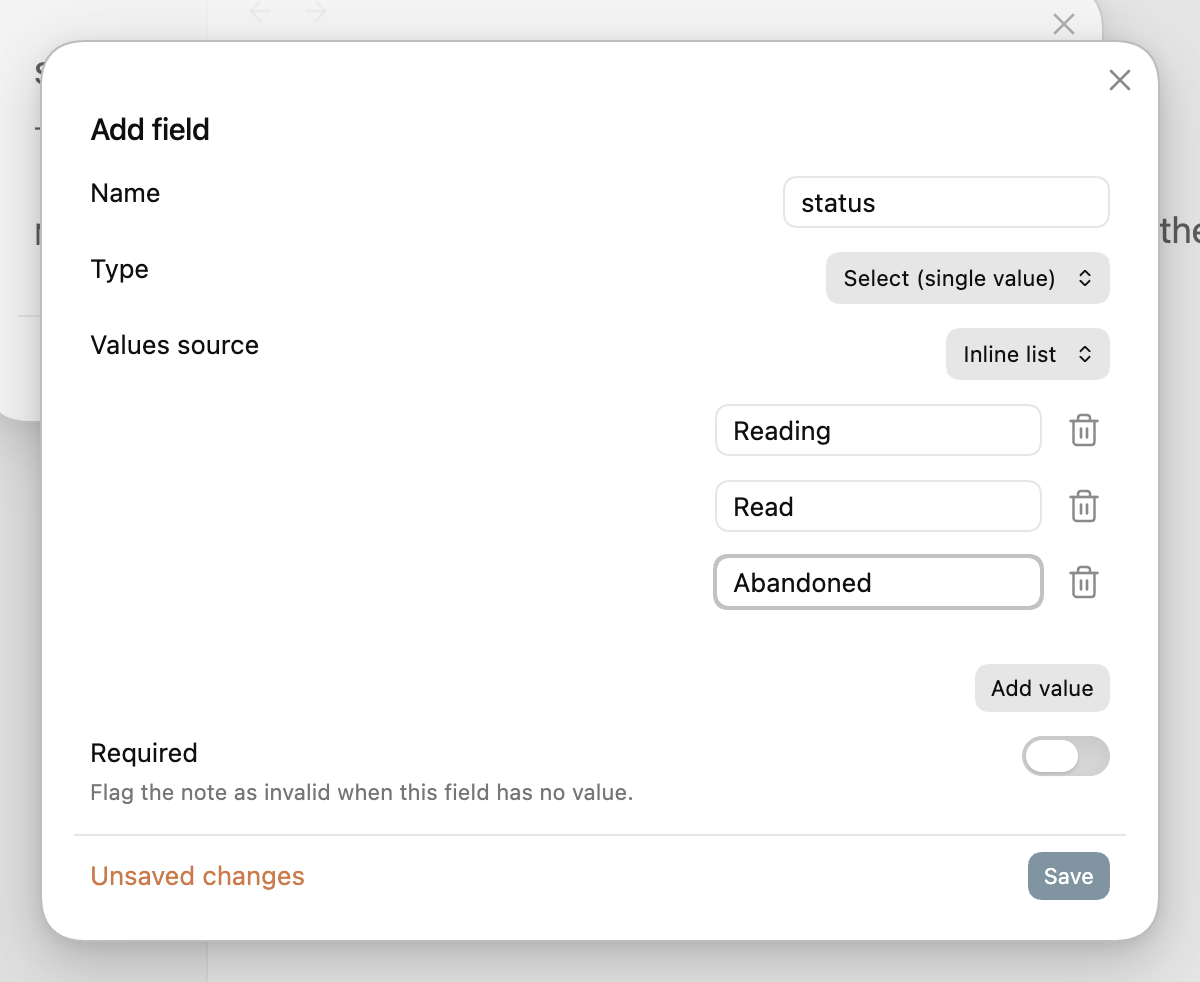
Selectvalues are not theTemplateoption. Template (on some types) composes a string likepg. {{page}}. The list aSelectoffers lives under Values source → Inline list, which is where Add value writes.
One field is enough to see the idea. Fileclass has twenty-six types, but a
Select shows the point immediately: from now on, status accepts those three
values and nothing else.
Two ways, and you will use both.
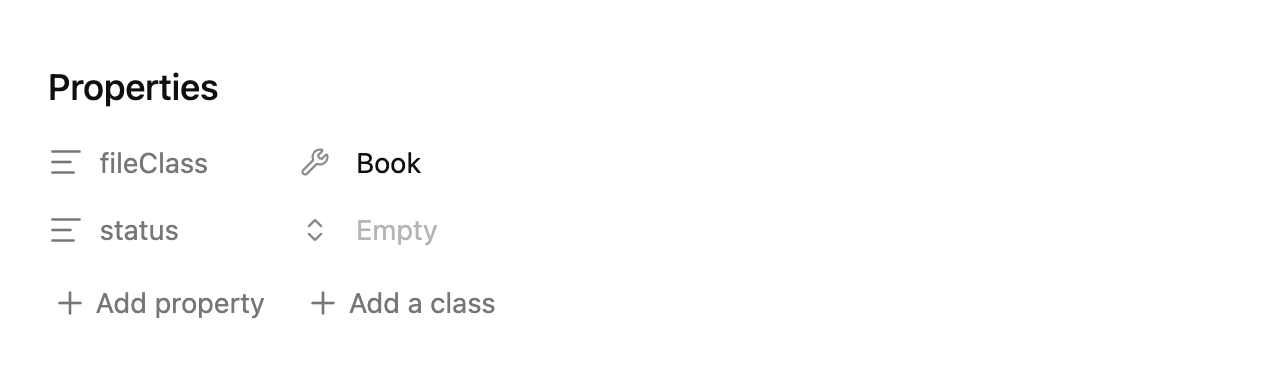
One note — open it, then command palette → Fileclass: add a class to this
note → Book. The fileClass property is written, and the class's fields come
with it:
A whole folder — open the class note (Classes/Book.md), click Options in
its Properties panel, then Files paths → Choose… and tick the folder. Every
note in it is a Book, with no fileClass line to write anywhere:
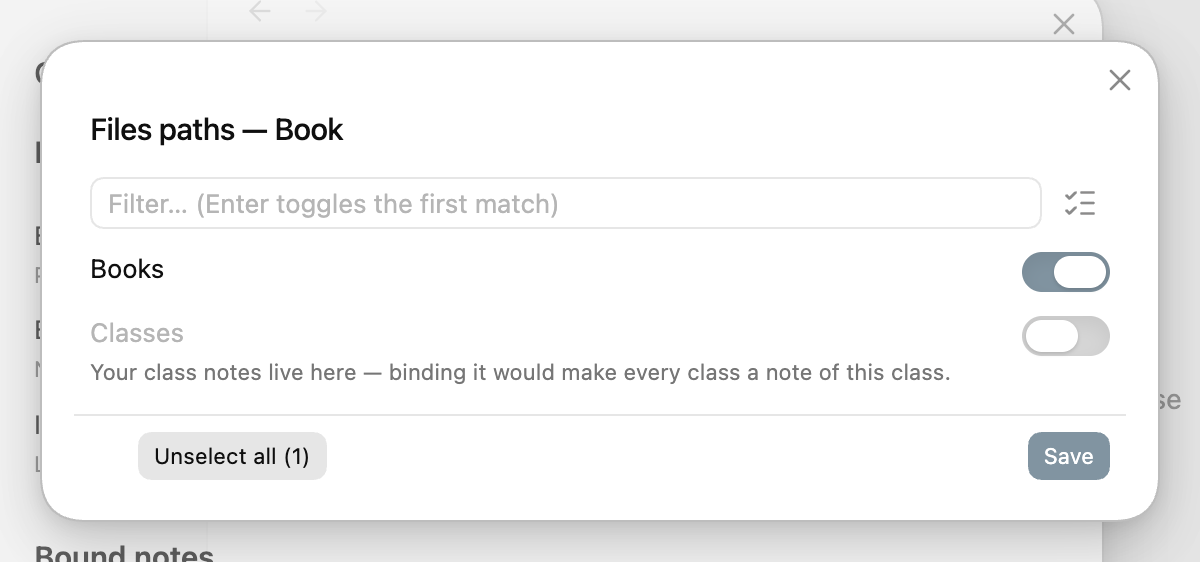
Your class folder is listed too, greyed: binding it would make every class a note of a class.
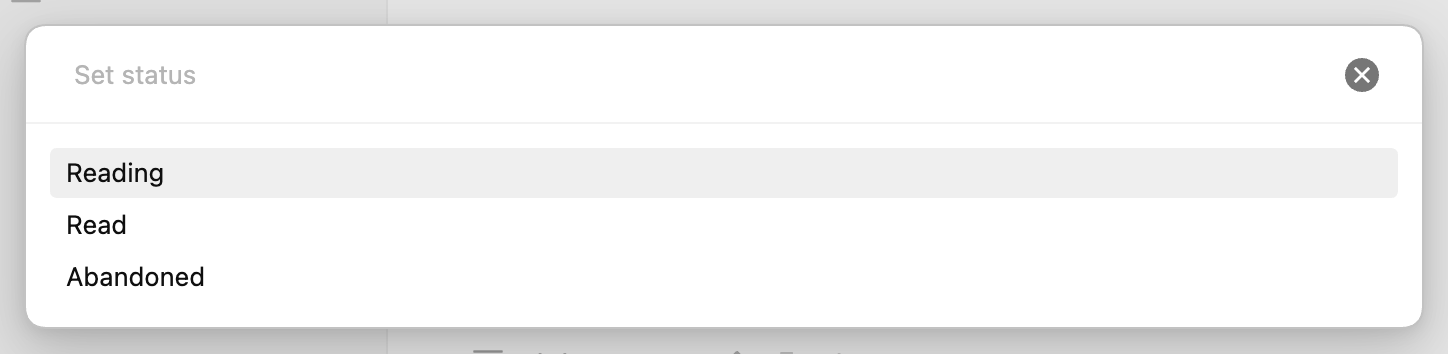
In the Properties panel, the small button between a key and its value opens
that field's own input — for a Select, the values you allowed:
A note claimed by a folder may have no frontmatter at all yet. The class still knows its fields: Fileclass: manage note fields lists them, and Insert missing fields writes the keys in one go.
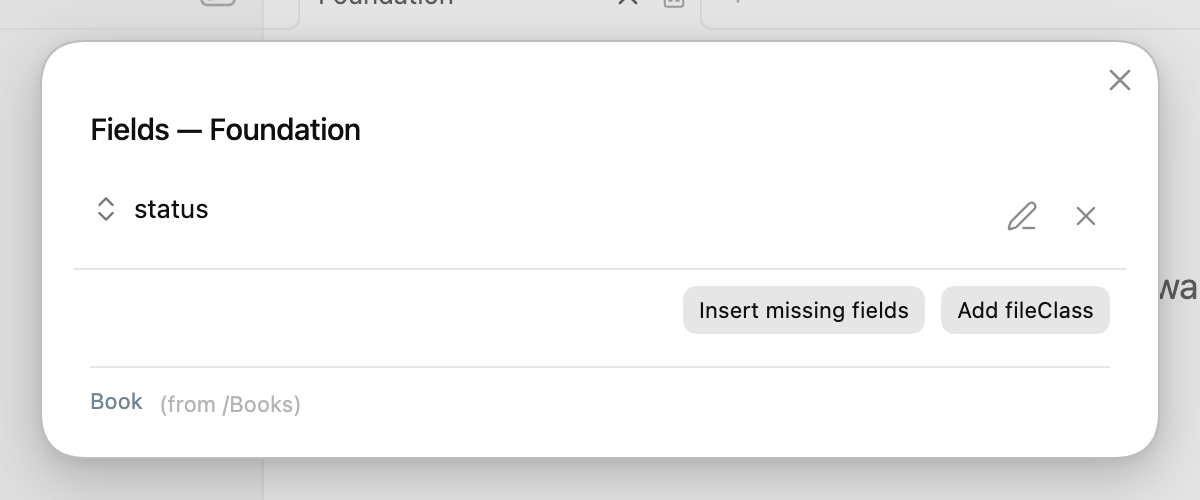
That is the whole loop: a class defines fields, a note is bound to a class, and the field's input is guided. What to reach for next:
- every field type — dates,
links, numbers with bounds, nested objects, and
Cycle, which advances on click; - binding notes — by tag, by bookmark group, by a Base view, or one class for the whole vault;
- required fields and validation — which notes are missing what;
- generated tables — one command turns a class into an editable Bases view.
Your classes form a model: what inherits from what, which fields draw their values from a base, which folders and tags each class claims. Fileclass: draw the schema canvas puts it on an Obsidian canvas: each class shows its fields and their types, the bases it depends on are previewed beside it, and the whole thing is arranged by you — a later sync keeps every position you gave it.
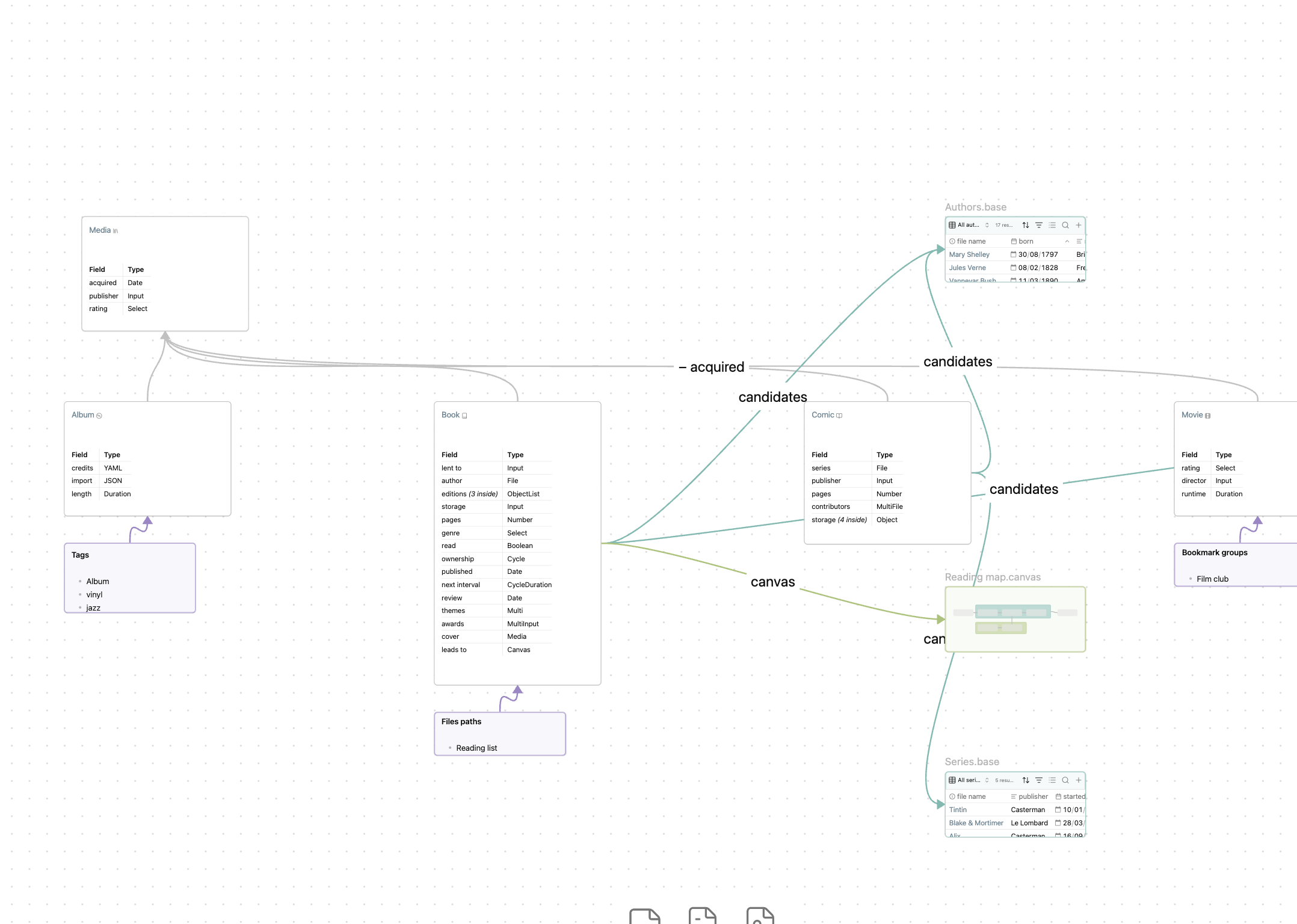
It also reports what silently does not work: a tag that can never bind — the index skips any tag containing a space — is struck through with the reason. More.
Your fileClass notes are read as-is. Lookup and Formula are out of scope (use
Bases views for reverse relations and computed columns; existing ones load
read-only), and the old FileClassView is replaced by fileclass-table, a Bases
view with editable cells. The details are in
the docs.
Metadata Menu still works, but don't run both at the same time. It is in maintenance mode and won't receive further features.
Bug reports, ideas and recommendations are very welcome — please open an issue: https://github.com/mdelobelle/fileclass/issues